Best Revit plugins and add-ins in 2026

CEO & Co-founder
Published
Updated

TL;DR
The best Revit plugin is not the one with the most features. It's the one that removes a task your team keeps doing by hand. In this guide, we compare 36 Revit plugins and add-ins by price, Revit version support, integration type, and the limitations worth knowing before you choose a tool.
Quick answer: which Revit plugin should you use?
There is no single best Revit plugin for every team. The right choice depends on the workflow you want to improve, whether that means documentation, modeling, coordination, automation, or data management.
We’ve grouped the most common Revit use cases into nine areas and selected a strong starting point for each one. From there, you can compare the alternatives based on features, pricing, compatibility, and how well they fit into your existing workflow.
| If you need to | Start with | Category | Price |
|---|---|---|---|
| Automate everyday modelling tasks | pyRevit | Automation | Free |
| Move model data in and out of Excel | Ideate BIMLink or DiRoots SheetLink | Data | On request or free tier |
| Batch export sheets and views | DiRoots ProSheets or RTV Xporter PRO | Documentation | Free tier or from GBP 55.52 |
| Automate sheet and view creation | Glyph | Documentation | $600 per year |
| Audit model health and standards | Guardian | QA/QC | On request |
| Keep discussion attached to a model element | Pinly or Autodesk Issues | Coordination | $10 per seat or included |
| Render without leaving Revit | Enscape, D5 Lite or Twinmotion | Visualisation | On request or free tier |
| Size conductors and route conduit | eVolve Electrical, MagiCAD or Electrical Pack | Electrical | On request |
| Build your own automation | Dynamo or pyRevit | Custom | Included or free |
Pricing is not as straightforward as it may seem. Of the 36 tools covered in this guide, fewer than half publish their pricing on their websites. For the rest, you may need to book a demo or contact sales before you know what a license will cost.
That makes pricing one of the harder parts of comparing Revit plugins. We’ve marked each tool as verified price, free, or on request, and dated the pricing information in the table. All data was checked directly against vendor websites and product pages.
Our recommendations
- Best free plugin: pyRevit
- Best for BIM managers: Ideate Explorer with Guardian
- Best for architects: pyRevit with Enscape
- Best for MEP: Rushforth Tools with MagiCAD
- Best for electrical design: eVolve Electrical or Electrical Pack
- Best for coordination: Autodesk Issues if your models live in Forma, Revizto if they don't, and Pinly if you need a lightweight option
- Best for visualisation: Enscape for speed, V-Ray for final images
- Best for custom automation: Dynamo if you have a scripter, pyRevit if you have a developer
How we compared Revit plugins
We compared every tool across nine criteria, focusing on the factors that matter when choosing a plugin for a production workflow. We didn’t assign scores out of 10 because a single editorial rating can make very different tools look directly comparable, even when they solve different problems.
Instead, we looked at:
- Workflow fit – the specific task the tool removes,
- Revit integration – whether the work happens inside Revit or through an export-and-import loop,
- Time saved – measured in tasks rather than percentages,
- Learning curve – measured by how long it takes a new user to become productive
- Reliability on production projects,
- Maintenance and version support – who provides compatibility when Revit updates
- Price and licence model – taken only from the vendor's website
- Free availability – what the free tier allows
- Who should not use it
The same approach applies to the factual data behind the comparison. We checked pricing directly on vendor websites in September 2026 and marked each price with the date it was verified. When a vendor doesn’t publish pricing, we say so. Revit version support was taken from vendor documentation, and when no specific version range is stated, we leave it unspecified.
What is a Revit plugin or add-in?
A Revit plugin is software that extends Revit with new commands or functionality, typically using the Revit API to read or modify the model.
Plugin and add-in usually mean the same thing. Autodesk uses add-in in its documentation and app in its storefront. In practice, users tend to say plugin when recommending a tool and add-in when talking about installing, disabling, or troubleshooting one. You will also see extension and add-on, usually for tools built around Autodesk products.
The important distinction is not the name, but how the tool runs. A compiled add-in registers through a .addin manifest, runs inside the Revit process, and can use the Revit API within its capabilities. A Dynamo graph or pyRevit script also works through the API, but doesn’t require the same compiled add-in workflow. That makes these tools easier to modify, but version compatibility can still require maintenance.
Revit LT doesn’t support add-ins, so this guide doesn’t apply to Revit LT users.
Where can I find Revit plugins?
There are five main places to find Revit plugins, although Autodesk’s own support article only covers two of them.
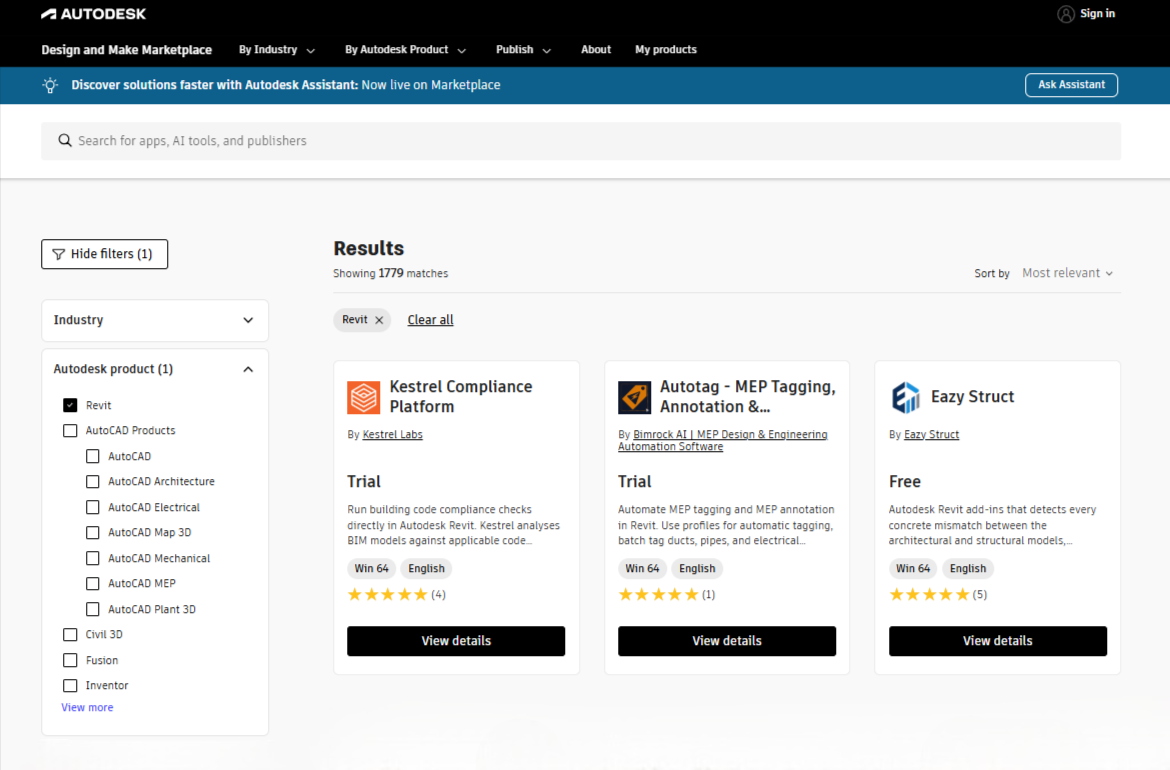
The Autodesk App Store is the largest catalogue. Listings include installers that have gone through Autodesk’s review process. Filter by your Revit version before downloading to avoid installing the wrong version.
The vendor’s own website is where most paid tools are sold, and where vendors usually publish the latest version first. Ideate, DiRoots, Rushforth, and CTC all distribute their products directly.
Your Autodesk Account includes add-ins that come with an Autodesk subscription, under Product Updates and then Plug-ins. The BIM Interoperability Tools are available there.
GitHub is where many open-source tools are released, including pyRevit and RevitLookup. Download the release asset rather than the source code unless you plan to build the tool yourself.
Your own deployment system is the standard approach for larger companies. Plugins can arrive through SCCM, Intune, or PDQ Deploy as packaged silent installs, so individual engineers don’t need to run an installer themselves.
There is one important detail to get right. An add-in installed per user writes to that user’s AppData folder, so it won’t be available to other users on the same machine and may disappear after a profile reset. An all-users installation puts the manifest in ProgramData instead, which is the better setup for centrally managed deployments.
Revit plugins vs Dynamo vs pyRevit vs the Revit API
When people talk about Revit automation, they are often referring to four different approaches: compiled add-ins, Dynamo, pyRevit, and the Revit API. They can address similar workflows, but differ in how much technical expertise they require, how much control they give your team, and who is responsible for keeping them working as Revit evolves.
| Tool | What it is | Technical skill | Who maintains it |
|---|---|---|---|
| Compiled add-in | Ready-made commands and functionality from a vendor | None | The vendor |
| Dynamo | Visual scripting environment included with Revit | Medium | Your team |
| pyRevit | Python scripts that add custom tools to the Revit ribbon | Medium | Your team, or the community for the core |
| Revit API | Framework for building custom Revit software | Developer | You, or a development partner |
The main trade-off is between convenience and control. A vendor add-in gives you a finished workflow and shifts compatibility and maintenance to the vendor, but it also introduces a licensing cost and limits you to the functionality the vendor provides. Dynamo and pyRevit give your team more control over the workflow, but someone internally or an external developer needs to build, test, and maintain what you create. The Revit API provides the most flexibility, but it also requires the highest level of development expertise.
For a commercial add-in, the vendor needs to update the application, test it against the new Revit version, and release a compatible build. We cover this aspect in how to keep Revit plugins up to date automatically blog post.
With an internal Dynamo graph or pyRevit script, the responsibility stays with your team. That may be perfectly reasonable for a small, well-documented workflow, but it becomes a risk when the original author leaves or a new Revit release breaks part of the implementation.
The decision is therefore the following: buy a ready-made add-in when the workflow is common and well supported. Use Dynamo or pyRevit when you need to adapt the workflow to your own processes. Use the Revit API when the requirement is substantial enough to justify dedicated custom software.
Best Revit plugins by use case
10 categories cover the main ways Revit teams use plugins and add-ins. Within each category, we rank the tools by how broadly they fit real-world workflows.
1. Best Revit plugins for automation and productivity
This is the category where a free tool can outperform many paid alternatives, and it’s where most companies should start when looking for ways to reduce repetitive work.
pyRevit adds hundreds of everyday commands that Revit doesn’t provide out of the box. It also gives companies a way to publish their own Python-based tools directly to the Revit ribbon without building a compiled add-in.
Common use cases include mass-renumbering rooms, views, and sheets; creating custom hatch patterns; matching properties across categories; batch-creating sheets; and importing consultant sheet lists from Excel.
- Best for: everyday tasks that Revit doesn’t handle natively, plus a practical starting point for internal automation
- Price: free, GPL v3; donations through Open Collective
- Revit versions: 2021–2027, according to the release notes
- Integrations: Revit API, Python, and custom extensions through the pyRevit CLI
- Learning curve: the built-in commands require almost no learning; creating your own tools requires basic Python
- Maintained by: pyRevit Labs and the open-source community; current release: v6.5.5
Pros
The breadth of functionality is difficult to match at any price. The extension system also allows users to distribute their own tools through the same Revit ribbon, rather than passing individual Dynamo graphs or scripts between users.
Cons
Once your team starts building its own pyRevit tools, those tools become internal software that someone needs to maintain. Compatibility with new Revit versions also depends on the community and project maintainers. Historically, new-version support has sometimes arrived later than it does for commercial products; firms have reported delaying Revit upgrades while waiting for compatible releases.
There is also an IT consideration. Since pyRevit is open source and interacts closely with Revit, some endpoint security tools can block it. Users have reported cases where EDR policies prevented pyRevit from loading or required the software to be removed.
Summary: when pyRevit makes sense
- Your team repeats small modelling and documentation tasks every day
- Someone in the office can read and adapt Python
- Your IT policy allows open-source software
- You want a practical distribution channel for internally developed tools
DiRootsOne bundles more than 10 free tools into one add-in that covers data management, filtering, model checking, drawing production and point clouds. SheetLink and ProSheets are the two users installed first. DiRoots has moved to a freemium model, so DiRootsOne and ProSheets have free tiers while DiStem and IDS4Revit are sold on request.
CTC BIM Project Suite is the tool BIM managers describe as the functionality Revit should have shipped with, covering batch operations, project setup and standards work. Pricing is not published.
Rushforth Tools links Revit data to Excel, manages shared parameters across projects, builds views and sheets from templates and automates recurring exports. A trial is available and the price is quoted on request.
Kobi Toolkit is the one long-time users mention as the affordable replacement for several paid tools at once. Tools in this category are also the cheapest to commission if the task is unique to your company, which is most of what design workflow automation covers.
2. Best Revit plugins for coordination and collaboration
Coordination is the category where the right choice depends heavily on the platform and workflow your company already uses.
Autodesk Issues became native in Revit 2027, placing threaded pushpins in the model with nine statuses, and it arrives with the Revit installation rather than a separate download.
If your models already live in Autodesk’s cloud, stop reading this section. It’s your answer.
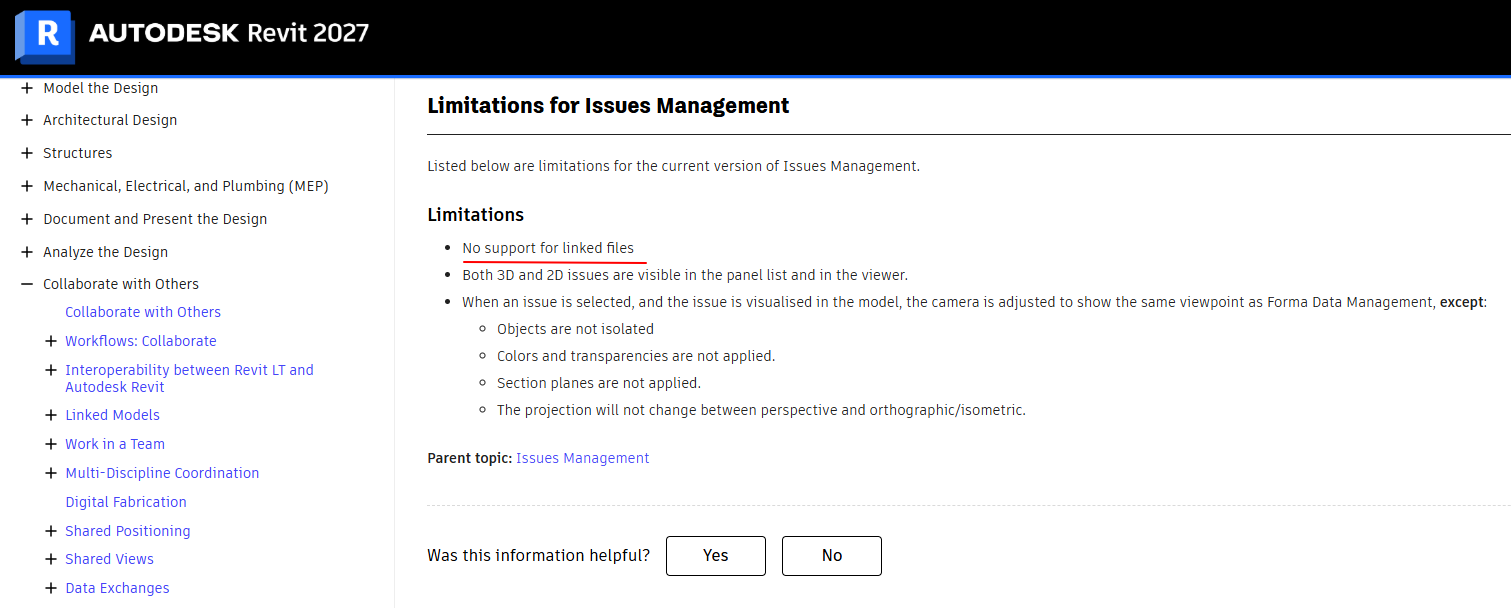
The qualification is that no separate installation is not the same as no cloud. Autodesk's documentation says the model must be stored in the Project Files folder of the Forma Data Management module, and it describes issues as created during review in Forma Data Management-connected applications, with Revit as the place you view and respond to them. The limitations page for Revit 2027 still lists no support for linked files.
For most MEP and structural teams, the linked-model workflow is where a large part of the coordination conversation lives. If your process starts upstream in Forma, it is worth knowing what else can be built there through Autodesk Forma extensions.
Revizto federates models from multiple authoring and coordination tools and provides a central environment for issues and clash management across disciplines. It’s a strong option for projects that need a dedicated coordination platform, although pricing is not publicly listed and requires a demo.
BIMcollab takes a more open approach, using BCF to exchange issues between Revit and other tools such as Navisworks, Solibri, and Tekla. Its BCF Manager plugin is available as part of the platform, which starts at EUR 12.50 per user per month with annual billing.
Dalux is worth considering for teams that need basic coordination without a large software budget. Its free tier supports up to 100 users per project and includes Revit and Navisworks add-ins, making it a practical option for teams that do not need a full paid coordination platform.
Pinly is a Revit-native collaboration plugin that attaches comments directly to model elements and keeps the discussion in a side panel. This keeps design-stage feedback connected to the element instead of scattered across screenshots, emails or chat threads. It’s one of the 12 ways to comment on a Revit model, each suited to a different workflow.
Unlike Autodesk Issues, Pinly doesn't require a Forma Data Management-connected cloud folder or a CDE workflow. Comments are managed through Pinly’s own service and appear as a side panel in Revit.
- Best for: teams looking for a Revit collaboration plugin instead of a separate coordination platform
- Price: USD 10 per seat per month
- Free version: 3 active projects, 1 seat
- Integrations: MCP endpoint for AI assistants; WebSockets for live updates
- Learning curve: low; the workflow centers on a model pin and a side panel
- Deployment: Revit add-in installation; no cloud folder or publishing step required
Pinly stores comments in an external database rather than inside the .rvt file. This keeps comments separate from the model itself and avoids adding data to the Revit file through extensible storage. A user who opens the model without Pinly sees the model as it was before.
Pros
Pinly doesn’t require a separate CDE or project management platform to discuss design issues in context. For teams that want to discuss a duct, wall, equipment item, or other model element directly in Revit, that narrower scope can be an advantage.
Cons
The free tier is limited to one seat, so a team needs paid seats to use Pinly as a shared workflow. Pinly also focuses on model-based discussion rather than formal project processes: a comment doesn’t automatically become an RFI or submittal.
Summary: when Pinly makes sense
- Your models are not managed through Forma Data Management
- You need design-stage collaboration tied to specific model elements
- You want a Revit-native collaboration plugin without adopting a full CDE
- Your team can use paid seats for shared multi-user workflows
Pinly is not a replacement for a CDE. Teams that need RFIs, submittals, document management, and broader project communication need a more comprehensive platform.
3. Best Revit plugins for BIM data and parameters
Data management in Revit largely comes down to two options: a comprehensive paid tool and a capable free alternative.
Ideate BIMLink connects Revit model data with Excel, allowing users to export parameters, make bulk edits in a spreadsheet, and push the changes back into the model. This turns large-scale parameter updates into a repeatable workflow. It’s one of the established tools in this category and a common choice for companies that need controlled and auditable data changes.
- Best for: bulk parameter editing and data audits across large models
- Price: on request; trial available
- Revit versions: not stated on the product page
- Learning curve: low for basic Excel workflows; medium for creating reusable link definitions
Pros
The round-trip workflow significantly reduces manual data entry, particularly when hundreds or thousands of parameters need to be updated. Link definitions can also be saved and reused, which makes recurring data operations more consistent across projects.
Cons
Working with Excel can lead to differences between the spreadsheet and the Revit model. You need to control who can edit the data and update the model to avoid these issues. Since pricing is only available on request, it’s also difficult to know the licensing cost.
DiRoots SheetLink provides a similar Excel-based workflow at no cost, although with a narrower feature set. For many teams, that is sufficient. The key question is whether you need saved link definitions, broader category coverage, or more advanced data management features than the free version provides.
If neither tool fits the way your team handles data or reporting, a custom workflow may be a better option. That is where BOM and take-off automation can help.
4. Best Revit plugins for documentation and sheets
Documentation is one of the biggest sources of repetitive work in a Revit project, which also makes it one of the areas with the most potential for automation.
Glyph automates view and sheet creation, tagging, dimensioning, and sheet packing. It also lets teams combine several of these operations into a single command and run them across a project.
- Best for: repeatable documentation workflows on projects with many similar views
- Price: USD 600 per year on an annual named licence; USD 97 per month on a monthly licence; USD 1,062 per year for a floating licence; USD 99 per year for students. Prices verified September 2026
- Free version: no; 15-day trial
- Learning curve: medium; the main benefit comes from configuring reusable bundles rather than running individual commands
Pros
Glyph is one of the few tools in this guide with a fully published price list. Its bundle system can also significantly reduce the time required for recurring documentation workflows once the configurations are set up.
Cons
The initial setup requires planning. If bundles are configured incorrectly, the tool can reproduce an incorrect documentation standard across a project just as efficiently as it reproduces a correct one.
Summary: when Glyph makes sense
- Your projects contain many views that follow the same documentation rules
- Someone on the team owns the documentation standard and can translate it into reusable configurations
- The licence cost is justified by the amount of manual work it removes
DiRoots ProSheets exports views and sheets in batches to PDF, DWG, DGN, DWF, NWC, IFC, and image formats. Its free tier covers the basic export workflows most teams need, making it one of the strongest free options in this category.
When you need an output that standard exporters don’t support, such as fabrication-ready drawing sets, a shop drawings generator is the custom alternative.
RTV Xporter PRO provides similar batch-export functionality, with scheduling and additional automation features. It’s also one of the few paid tools in this category with published pricing: licences range from GBP 55.52 for a single licence to GBP 9,249.99 for an enterprise licence, including a one-year subscription. A 30-day trial is available. The product supports Revit 2023, 2024.1, 2025, and 2026.
5. Best Revit plugins for model cleanup and QA/QC
Model health tools are most valuable when a project already has data quality or coordination issues but that is also when teams have the least time to deal with them.
Ideate Explorer helps teams find, filter, and remove elements across a model and turn a long warnings list into a more manageable set of issues. There is a significant difference between knowing that a model has 4,000 warnings and being able to identify the 200 that actually require attention.
- Best for: warning triage, element cleanup, and model audits before issues escalate
- Price: on request; trial available
- Learning curve: low
Pros
Warning triage is one of the most time-consuming parts of model health management. Explorer allows you to filter and prioritize issues instead of working through the warnings list manually.
Cons
The fixes still require user intervention. That is appropriate for its scope, although teams looking for automated remediation may expect more.
Guardian from Iconic BIM takes a more preventative approach. It helps firms enforce standards through cloud-hosted properties, apply rules-based protections, and monitor model performance through dashboards.
- Best for: firms with established Revit standards that need a way to enforce them consistently
- Price: on request; 30-day trial
- Vendor: Iconic BIM, LLC
Pros
Guardian focuses on preventing users from violating established standards rather than identifying the resulting problems later. This is particularly useful for companies with clearly defined modelling and project standards.
Cons
The effectiveness of enforcement depends on clear standards in the first place. Companies without an established Revit standard will need to define those rules before they can get the full benefit from the tool.
Autodesk Model Checker is free and available as part of the BIM Interoperability Tools through your Autodesk Account. It runs predefined rule sets against a model to identify potential issues. Its functionality is more limited than that of the paid tools, but there is no licensing cost.
6. Best Revit plugins for visualisation and rendering
Rendering is the one category where brand recognition tracks quality reasonably well, so the shortlist is short.
Enscape provides real-time rendering directly in Revit and supports VR workflows. It’s one of the most widely adopted rendering tools among Revit users, particularly in architectural practices. Pricing is published on the vendor's website and can change as the licensing model evolves, so we have not reproduced a static figure here.
D5 Lite for Revit provides real-time rendering directly from the Revit environment without requiring a separate export workflow. It supports Revit 2019 through 2027, giving it one of the broadest stated version ranges among the tools covered in this guide.
Twinmotion from Epic Games combines real-time rendering with animation and presentation capabilities. Its free tier is subject to a revenue threshold, making it an accessible starting point for smaller practices and teams that want to evaluate real-time visualisation before committing to a paid licence.
V-Ray for Revit from Chaos is aimed at teams that prioritise final image quality and control over the speed of the rendering workflow. It offers more advanced rendering capabilities than a typical real-time visualisation tool, but also requires more time and expertise to get the most from it.
Lumion LiveSync connects Revit with Lumion and keeps the two environments synchronised during the design process. It remains a relevant option for teams already using Lumion, particularly when they want to move between Revit modelling and real-time visualisation without repeatedly exporting the model.
7. Best Revit plugins for MEP and electrical design
While Revit covers the basics, electrical teams may need additional functionality for calculations, circuit design, documentation, and other discipline-specific tasks.
This is also reflected in the experience of electrical contractors and Revit users, who have long pointed to electrical design as an area where Revit has fewer native capabilities than other disciplines.
eVolve Electrical is designed for electrical contractors and prefabrication workflows. It’s particularly relevant for teams doing installation-level electrical modelling in Revit, with tools for electrical design, fabrication, and production workflows. Pricing is available on request.
MagiCAD for Revit adds manufacturer catalogues and engineering calculations directly to the Revit workflow. Its capabilities include voltage-drop calculations from the main supply through the distribution network, protective-device verification, power calculations, and short-circuit calculations. It has particularly strong adoption in European markets, with pricing available on request.
Electrical Pack focuses on electrical design and calculation workflows that would otherwise require significant manual work. It generates single-line diagrams linked to the Revit model, evaluates cumulative voltage drop through the distribution hierarchy from the main service panel to the final outlet, selects cable sizes with manual overrides, and routes conduit.
- Best for: recurring electrical design and calculation workflows in civil buildings
- Price: on request
- Free version: no trial or free tier
- Standards: NEC- and DIN/IEC-based templates
- Scope: civil buildings and low-voltage systems up to 1 kV
- Learning curve: higher than average; designed for electrical engineers rather than general Revit users
The tool addresses some of the functionality that changed in recent Revit releases. In Revit 2026, Autodesk removed the legacy automatic wire-sizing logic and the default voltage-drop field. Autodesk's knowledge base describes this behaviour as working as designed.
Pros
Calculations remain connected to the Revit model. When circuit lengths or other relevant inputs change, the electrical calculations can be updated as part of the model workflow instead of relying on a separate spreadsheet that someone needs to maintain manually.
Cons
Electrical add-ins introduce both licensing costs and a learning curve, and calculation methods can vary between products. Before using one on a live project, teams should verify that its calculation methodology and code templates match their local requirements.
Summary: when a Revit electrical add-in makes sense
- Electrical design in Revit is a regular part of your workflow
- Projects contain enough circuits that manual checking becomes inefficient
- You need NEC- or DIN/IEC-based calculations without developing the functionality yourself
- You understand that specialist, certified power-system analysis may still require a separate platform
Naviate MEP and Stabicad are also worth considering for teams already working within the Symetri or Trimble ecosystems. Trimble SysQue belongs in the same broader discussion, particularly for fabrication-oriented workflows, although user experience can vary depending on how well its generated content fits the firm's existing process.
For a deeper dive into electrical-specific workflows and tools, see our guide to the best Revit electrical plugins.
8. Best Revit plugins for structural engineering
Structural engineering has fewer dedicated Revit plugins than some other disciplines, but the leading tools have fairly distinct use cases.
SOFiSTiK BiMTOOLS and Reinforcement focus on reinforced-concrete workflows, including rebar modelling, detailing, and structural documentation. They are among the established options for companies that need more advanced reinforcement workflows inside Revit.
StrucSoft MWF focuses on light-gauge steel and timber framing. It provides tools for framing and panel-based workflows, but there is an important limitation to consider: detailed panel-level workflows can require users to model individual studs. That can reduce the time savings on projects where the framing geometry is complex or changes frequently.
9. Best Revit plugins for families and content
Content management is easy to overlook until a company's library contains thousands of families and no one is sure which ones are approved, current, or being used.
UNIFI and Kinship focus on managing Revit content libraries, helping firms organise families, track content usage across projects, and control which content is available to users. Both use custom pricing, so companies need to request a quote.
BIMobject and BIMsmith Forge address a different need: accessing manufacturer-specific content rather than managing an existing library of generic families. They can help teams bring real product information and manufacturer content into Revit without building every family from scratch.
When the required content doesn’t exist in a manufacturer library or needs to follow a firm's own modelling standards, custom development may be the better option. Companies can commission Revit family generators to automate the creation of parametric content tailored to their requirements.
10. Best Revit plugins for interoperability and custom automation
Not every Revit workflow can be solved with a ready-made plugin. Some teams need to connect Revit with other software, automate rules that are specific to their own standards, or work directly with the model at a deeper technical level. That is where tools such as Dynamo, Rhino.Inside.Revit, Speckle, and RevitLookup become useful.
Dynamo is often the most accessible starting point for custom automation. It ships with Revit at no additional cost and allows teams to encode their own rules and workflows through visual programming.
- Best for: firm-specific rules and workflows that no vendor is likely to build
- Price: included with Revit
- Learning curve: medium; higher for teams maintaining complex graphs created by someone else
Pros
Dynamo gives a team a relatively low-cost way to automate its own standards and workflows, while keeping the resulting graphs under the firm's control rather than depending on a vendor.
Cons
Graphs can break when Revit or third-party packages are updated, and maintenance becomes a problem when the original author leaves. Dynamo also has a steeper starting point than a ready-made add-in because users need to build the workflow themselves. For beginners, experienced Revit users often recommend starting with finished tools such as pyRevit before moving to custom Dynamo automation.
Rhino.Inside.Revit runs Rhino and Grasshopper within the Revit environment, allowing teams to create complex geometry in Grasshopper and bring it directly into Revit. It is particularly useful for computational design and complex facade workflows, where it can eliminate repeated import and export steps.
Speckle connects Revit, Rhino, Blender, and other design tools through a shared data platform rather than relying on traditional file-based exchanges. It is useful when a project workflow spans several applications and teams need to move model data between them without repeatedly exporting and importing files.
RevitLookup is a free developer tool for inspecting Revit elements, parameters, properties, and relationships. It is particularly useful when building or debugging custom Revit add-ins: if a schedule is not picking up an element or a parameter behaves unexpectedly, RevitLookup can help developers see what is actually stored in the model.
For a broader look at the tools we use when developing custom BIM and AEC software, see development tools we use to build BIM and AEC software.
Revit plugins and add-ins compared: the full table
Every tool in this guide, on one screen. Prices were checked against vendor websites in September 2026.
| Plugin | Category | Price | Free tier | Revit versions | Integration | Learning curve |
|---|---|---|---|---|---|---|
| pyRevit | Automation | Free, GPL v3 | Full | 2021 to 2027 | Native, API | Low to medium |
| DiRootsOne | Automation | Freemium | Yes | Not stated | Native, Excel | Low |
| CTC BIM Project Suite | Automation | On request | Some free tools | Not stated | Native | Low |
| Rushforth Tools | Automation | On request, trial | Trial only | 2022 and later for some tools | Native, Excel | Medium |
| Kobi Toolkit | Automation | On request | Trial | Not stated | Native | Low |
| Ideate BIMLink | Data | On request, trial | Trial only | Not stated | Excel | Medium |
| DiRoots SheetLink | Data | Free tier | Yes | Not stated | Excel | Low |
| Glyph | Documentation | $600 per year named | 15-day trial | Not stated | Native | Medium |
| DiRoots ProSheets | Documentation | Free tier | Yes | Not stated | Native, export | Low |
| RTV Xporter PRO | Documentation | From GBP 55.52 per year | 30-day trial | 2023, 2024.1, 2025, 2026 | Native, export | Low |
| Ideate Explorer | QA/QC | On request, trial | Trial only | Not stated | Native | Low |
| Guardian | QA/QC | On request | 30-day trial | Not stated | Native, cloud | Medium |
| Autodesk Model Checker | QA/QC | Free | Full | Ships with subscription | Native | Low |
| Autodesk Issues add-in | Coordination | Included with Forma | No | Native in 2027 | Cloud | Low |
| Revizto | Coordination | On request | No | Not stated | Cloud, federated | Medium |
| BIMcollab BCF Manager | Coordination | From €12.50 per user per month | Plugin free with platform | Not stated | BCF, open format | Low |
| Dalux BIM Viewer | Coordination | Free tier | 100 users per project | Not stated | Cloud | Low |
| Pinly | Coordination | $10 per seat per month | 3 projects, 1 seat | 2025–2027 (previous versions available upon request) | Native, MCP | Low |
| Enscape | Visualisation | On vendor site | Trial | Not stated | Native render | Low |
| D5 Lite for Revit | Visualisation | Free tier | Yes | 2019 to 2027 | Native render | Low |
| Twinmotion | Visualisation | Free under revenue threshold | Yes | Not stated | Sync render | Low |
| V-Ray for Revit | Visualisation | On vendor site | 30-day trial | Not stated | Native render | Medium |
| Lumion LiveSync | Visualisation | Bundled with Lumion | No | Not stated | Sync render | Low |
| eVolve Electrical | Electrical | On request | No | Not stated | Native | High |
| MagiCAD for Revit | Electrical, MEP | On request | Trial | Not stated | Native, catalogues | High |
| Electrical Pack | Electrical | On request | 14-day trial | 2025–2027 (previous versions available upon request) | Native | Medium to high |
| Naviate MEP | MEP | On request | Trial | Not stated | Native | Medium |
| Stabicad | MEP | On request | Trial | Not stated | Native | Medium |
| SOFiSTiK BiM Tools | Structural | On request | Trial | Not stated | Native | Medium |
| StrucSoft MWF | Structural | On request | No | Not stated | Native | High |
| UNIFI and Kinship | Content | On request | No | Not stated | Cloud library | Low |
| BIMobject | Content | Free | Yes | Not stated | Content download | Low |
| Dynamo | Content | Included with Revit | Full | Ships with Revit | Native, API | Medium |
| Rhino.Inside.Revit | Interoperability | Free, Rhino licence needed | Full | Not stated | In-process geometry | High |
| Speckle | Interoperability | Free tier | Yes | Not stated | Server, open data | Medium |
| RevitLookup | Developer | Free | Full | Not stated | Native | Low |
Not stated appears 26 times under Revit versions, which means most vendors don’t publish compatibility information on the page where you would expect to find it. Ask before you install, and ask again before you upgrade Revit.
On request appears in the price column more often than any figure. That is the clearest finding from building this comparison: for most Revit plugins, you can’t know what a licence costs without talking to the vendor first.
Best Revit plugins by role
The same Revit model can serve very different purposes depending on who is working with it. An architect, structural engineer, BIM coordinator, and visualisation specialist may all use Revit every day, but their priorities and the tools they need can be very different.
| You are | Start with | Then consider |
|---|---|---|
| Architect | pyRevit, Enscape | Glyph, Ideate Explorer |
| Structural engineer | pyRevit, SOFiSTiK | Ideate BIMLink, Rhino.Inside |
| MEP engineer | Rushforth Tools, MagiCAD | DiRootsOne, Naviate |
| Electrical engineer | Electrical Pack or eVolve Electrical | MagiCAD, Dynamo |
| BIM coordinator | Autodesk Issues or Revizto, Pinly | BIMcollab, Dalux |
| BIM manager | Ideate Explorer, Guardian | pyRevit, DiRootsOne, Model Checker |
| Visualisation specialist | Enscape, D5 Lite | V-Ray, Twinmotion |
| Revit power user | pyRevit, Dynamo | RevitLookup, Rhino.Inside |
Two roles in particular need a little more context.
For a BIM manager, the priority is often less about producing drawings and more about understanding what is happening inside models created by other people. That is why tools such as Ideate Explorer and Guardian can be especially useful. They help identify inconsistencies, unusual elements, and potential issues before the team has to work through them manually.
For a BIM coordinator, the choice is often influenced by decisions made at the project or company level. If a contractor has already standardized on a particular CDE or coordination platform, the available tools may be determined by that environment rather than individual preference. In those cases, coordination software becomes part of the project's infrastructure.
What are the best free Revit plugins?
Nine tools in this guide are either completely free or offer a meaningful free tier. Together, they cover a wide range of workflows, from automation and data management to documentation, model checking, geometry exchange, coordination, and rendering.
| Plugin | Main use | What the free version gives you | Limitation |
|---|---|---|---|
| pyRevit | Automation | Everything, no paid tier exists | Community maintains version compatibility |
| DiRootsOne | Mixed toolset | Free tier across ten-plus tools | DiStem and IDS4Revit are paid |
| DiRoots ProSheets | Batch export | Free tier covers most export formats | Narrower than paid exporters |
| Autodesk Model Checker | QA/QC | Full rule-set checking | Fewer rules than commercial tools |
| Rhino.Inside.Revit | Geometry exchange | Full, you need a Rhino licence | Rhino is not free |
| RevitLookup | Element inspection | Full | Developer tool, not a production one |
| Dalux BIM Viewer | Coordination | 100 users per project | Coordination only, not modelling |
| Dynamo | Custom automation | Ships with Revit | Every graph becomes yours to maintain |
| Twinmotion | Rendering | Free tier under a revenue threshold | Threshold rules change |
The important distinction is that free doesn’t necessarily mean cost-free. A plugin may have no licence fee while still requiring time to configure, learn, maintain, or troubleshoot. In many companies, that work ultimately falls to a BIM manager or another technical specialist.
Revit integration: which plugins connect Revit to what
Revit plugins use different types of integration, and the way they connect to other tools can significantly affect your workflow.
| Integration type | What it means | Tools in this guide |
|---|---|---|
| Native | Work happens inside the Revit window | pyRevit, Ideate, Guardian, Enscape, Pinly |
| Spreadsheet | Model data round-trips through Excel | Ideate BIMLink, DiRoots SheetLink, Rushforth |
| Cloud and CDE | Revit publishes to a platform and reads back | Autodesk Issues, Revizto, Dalux, BIMcollab |
| Open format | Data travels as IFC or BCF between vendors | BIMcollab, DiRoots IDS4Revit, Speckle |
| Rendering | Geometry syncs to a render engine | Enscape, D5 Lite, Twinmotion, V-Ray, Lumion |
| Geometry | Another modeller runs inside Revit | Rhino.Inside.Revit |
| API | Custom software written against Revit | Dynamo, pyRevit, in-house add-ins |
| AI and MCP | An assistant calls a tool that talks to Revit | Pinly MCP, emerging Revit MCP servers |
Each additional handoff between Revit and another system adds another point where data can be lost, delayed, or require manual intervention.
For example, a rendering workflow that synchronizes directly with Revit may involve very few handoffs. A coordination workflow might include exporting a model to another platform, receiving comments there, and then bringing those changes back into Revit manually. So, before comparing plugins by features or price, it’s worth looking at how each one fits into the way your team already works and how much data it requires you to move between systems.
Bottom line: which Revit plugins should your team install?
The goal is not to build the largest plugin stack. It's to build the smallest one that removes meaningful amounts of repetitive work. Before installing a tool, you should be able to identify the specific task it improves and how often your team performs it.
- If you have a small practice with standard workflows, install pyRevit and nothing else for three months. Then look at what still takes too long.
- If you have a documentation-heavy office, start with ProSheets or RTV Xporter, and add Glyph once your documentation rules are clearly defined.
- If you have models in Forma Data Management, start with Autodesk Issues for model-based issue management before adding another coordination platform.
- If you have models elsewhere and a coordination problem, look at Dalux before moving to a paid coordination platform.
- If you have an electrical team working in Revit every day, an electrical add-in is worth evaluating. Keep certified power-system analysis in a separate specialist package.
- If you have rules nobody is likely to build for you, consider Dynamo or a custom add-in. Just treat it as a maintenance commitment, not a one-time purchase.
If none of these options fits your workflow, the next step may be to look at custom automation. A Revit plugin provider can help assess the workflow and determine whether a custom tool makes more sense than adapting an existing one.
FAQ
What are the best plugins for Revit?
There is no single best Revit plugin. For general automation, pyRevit is one of the strongest starting points. For BIM data and model health, Ideate is a solid choice. For documentation, Glyph and DiRoots ProSheets cover different levels of automation. For coordination, Autodesk Issues, Revizto, Dalux, or Pinly make sense depending on your existing workflow. For electrical design, eVolve Electrical and Electrical Pack are worth evaluating. The right choice ultimately depends on the task you need to remove, not the number of features a plugin offers.
Can Revit plugins slow down Revit?
Yes. Add-ins extend Revit startup, consume memory, and can conflict with each other because Revit loads all add-in libraries into a shared namespace without strong naming. Disabling add-ins and re-enabling them one at a time is the standard way to find which one is responsible.
Are Revit plugins safe?
An add-in can have significant access to Revit and the data available to it, so the important question is who developed it and what the software does. Check the publisher, release history, permissions, and whether the tool sends data outside your environment. For an unfamiliar add-in, test it on a non-production model before deploying it to a live project.
Do Revit plugins work with Revit LT?
No. Revit LT doesn't support add-ins, so nothing in this guide applies to it.
CEO & Co-founder
Ilia Ivanov is a BIM and AEC software development expert with over 10 years of experience. He specializes in Autodesk Revit, BIM automation, and custom software development for the AEC industry. Ilia shares practical insights on the Revit API, AI-powered engineering workflows, and building tools that help design teams work more efficiently.