How to comment on a Revit model

CEO & Co-founder
Published
Updated

TL;DR
Revit lacks a built-in, unified commenting system. Native tools like revision clouds or the Comments parameter are disjointed and don't support threaded discussions or status tracking. While third-party add-ins like BIMcollab, Procore, and Newforma Konekt offer professional issue-tracking, they often require specific cloud environments and project workflows. Because of this, most teams still rely on external tools like Bluebeam, Teams, or Excel to manage feedback, creating a persistent gap between project communication and the model.
Why Revit still has no built-in comment tool
The best response Revit has provided to the question, "How do I leave a note on this?" is to set your text color to RGB 254,254,254 and change Revit background to grey. It sounds ridiculous, but it’s a real workaround. In 2017, someone posted in an Autodesk forum thread asking for non-printable text and markups inside Revit. As of August 2026, the thread has 478 votes and 81 comments. Its status is still Gathering Support.
Nearly nine years have passed. 478 votes. White-on-grey text.
We build custom Revit plugins and add-ins for a living, so we get to watch this gap from the inside. What surprised us is not that people still want this feature, but how precisely they have described what they want.
Take Corsten.Au, who opened the thread:
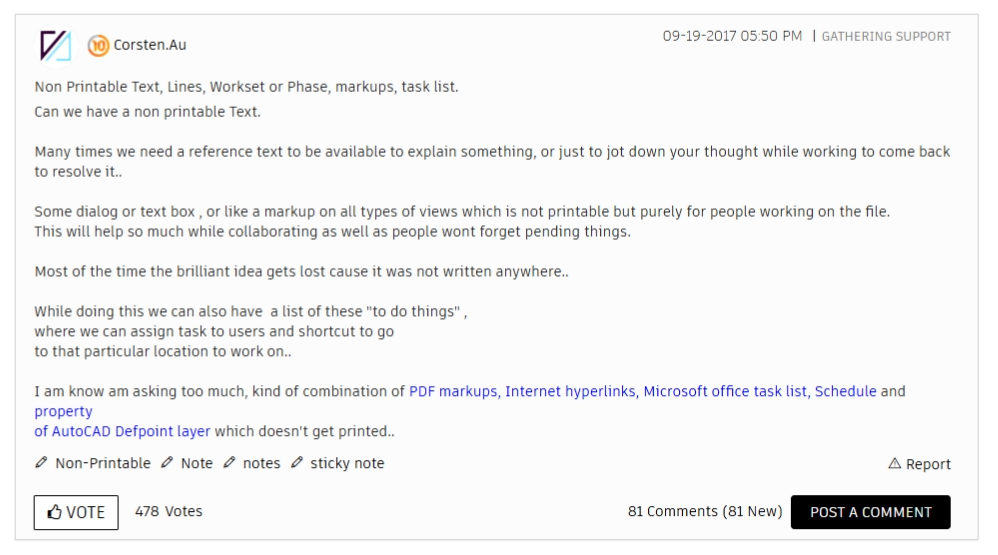
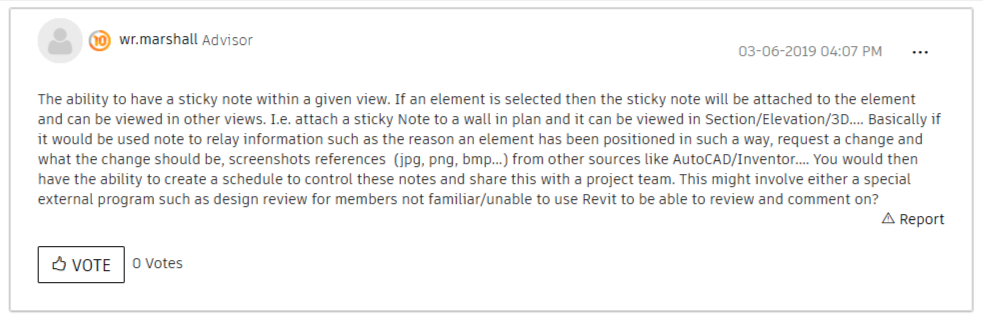
Two years later, in the same thread, another user got more specific. He described the feature that people still want:
And on r/Revit, someone described the same problem from a much more familiar angle:
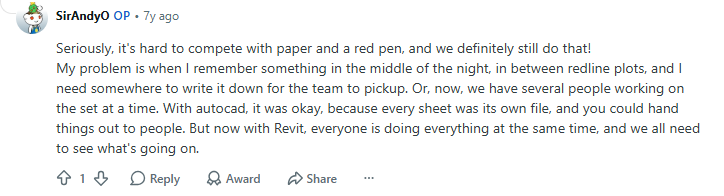
No one in these discussions is asking for an entire platform. They simply want a sticky note that understands which wall it relates to. So, if Revit doesn't offer this functionality natively, what alternatives can we turn to?
Here are 12 tools that teams commonly use.
Revit commenting methods compared
| # | Method | Attaches to | Thread | Author + status | Needs |
|---|---|---|---|---|---|
| 1 | Comments parameter | Element | No | No | Nothing |
| 2 | Text notes, revision clouds, annotation | View | No | Revisions only | Nothing |
| 3 | Coordination Review | Changed element in a link | No | Status, no author | Copy/Monitor |
| 4 | Editing requests + sync comment | Nothing | No | Grant/Deny | Worksharing |
| 5 | Shared Views | Cloud snapshot of a view | Yes | Resolve | Autodesk ID to comment |
| 6 | Autodesk Issues | XYZ point in the model | Yes | 9 statuses | Forma Data Management |
| 7 | BCF managers | Component IDs + viewpoint | Yes | Yes | Plugin, usually a cloud |
| 8 | CDE add-ins | Element or point | Yes, with @mentions | Yes | SaaS account |
| 9 | Pinly | Pin on an element | Yes | Resolve | Add-in |
| 10 | PDF markup | Sheet | In a Session | Yes | Revu |
| 11 | Navisworks viewpoints | Viewpoint or clash | Yes | Yes | Navisworks |
| 12 | Chat, email, Excel | Nothing | Yes | No | Nothing |
Group I. Native Revit options, no installation required
1. The Revit Comments parameter (Identity Data)
Most Revit categories include a Comments field (instance level) and Type Comments (type level) under Identity Data. Since this text is stored as element data, it follows the object across every view, schedule, and export. To use it, select an element and enter your note in the Properties palette.
For a bird's-eye view of all notes, create a Multi-Category schedule using the Comments field.
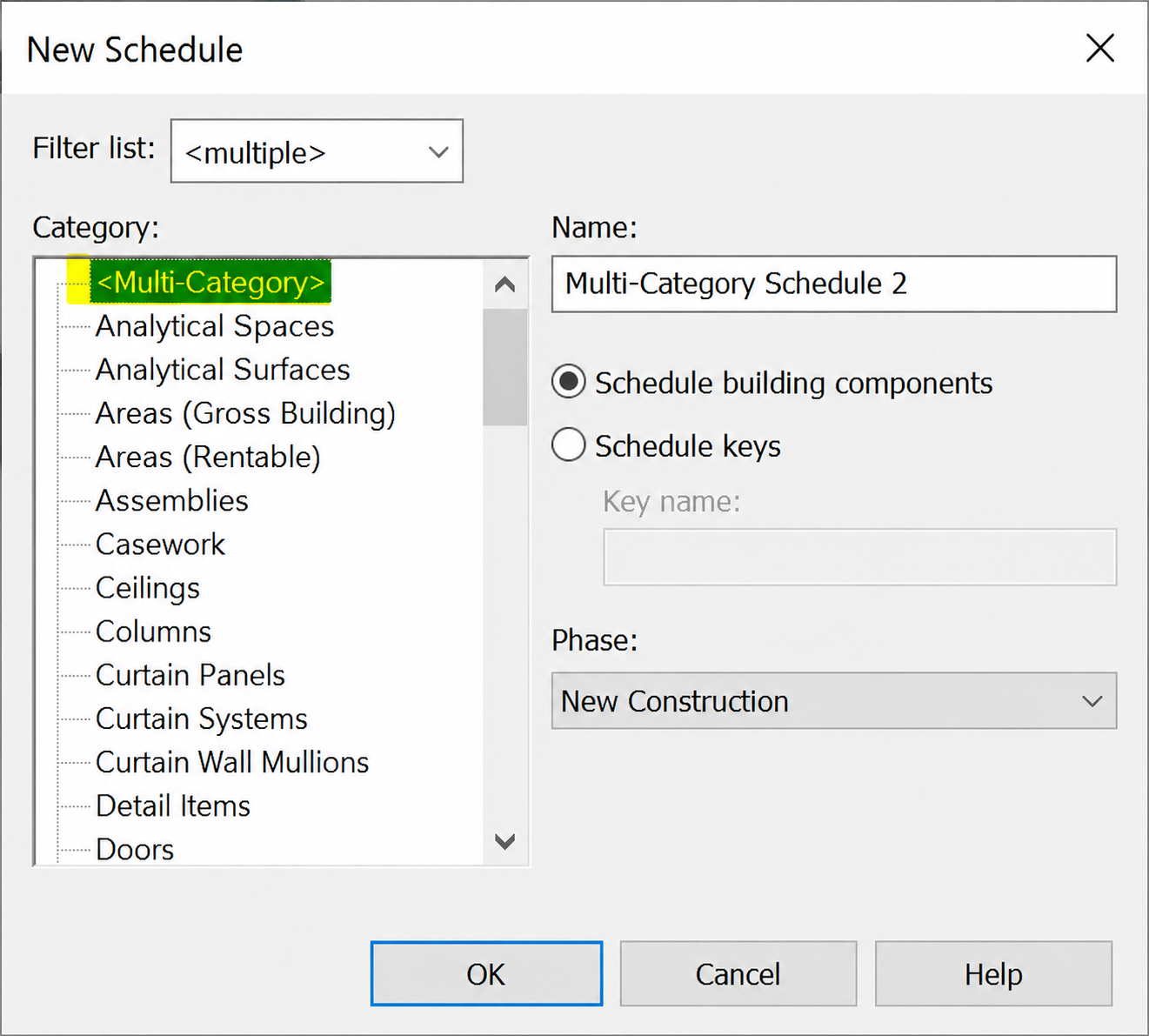
Note that while a Multi-Category schedule works, a Note Block will not; the latter is reserved for generic annotation families rather than model elements.
The main drawback is that this is a single data field, not a conversation thread. It lacks authorship tracking, timestamps, and replies, and anyone can overwrite existing text. Furthermore, because these comments appear in IFC exports and official schedules, many BIM managers discourage using them for informal coordination.
Ultimately, the Comments parameter is best for permanent metadata like "Salvaged from level 2" rather than active communication that requires resolution.
2. Text notes, revision clouds, and annotation sticky notes
Standard text notes, revision clouds, and generic annotation families (often disguised as sticky notes) are the three tools teams frequently rotate between. While they overlap, they serve distinct roles. A revision cloud is more formal; it carries a number, date, and status that feeds directly into the Sheet Issues/Revisions table. Meanwhile, generic annotation families are the only ones that can be gathered into a Note Block, providing a way to list them in one place.
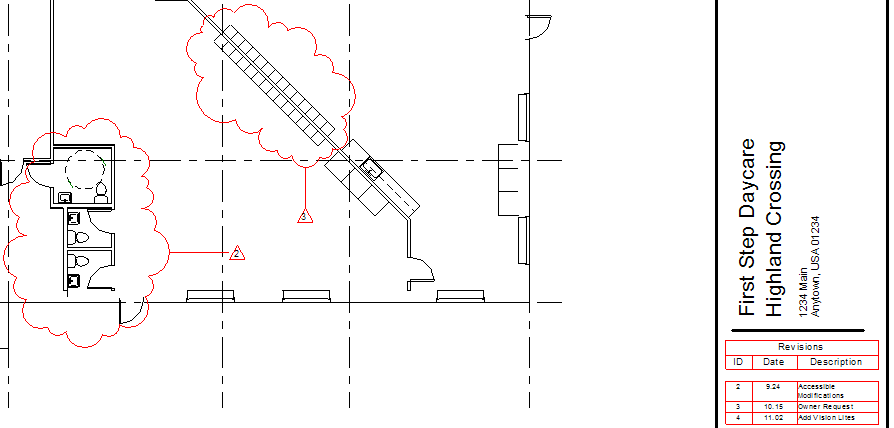
The catch with all three is that they are view-specific. A note placed on a floor plan is invisible in a section or a 3D view. They are also "live" elements: unless you manually hide them, they will appear on your printed set. Revision clouds, specifically, are built to document a change that has already happened, making them a poor fit for an ongoing discussion about what should change.
These tools work best for sheet-level redlines that are meant to be addressed and then forgotten. If a change needs to be officially recorded in the revision schedule, reach for the revision cloud; for everything else, these are temporary markers that rarely survive into the next issue.
3. Coordination review (Copy/Monitor elements only)
Coordination Review is Revit's most underrated native answer to the commenting problem. When elements are under Copy/Monitor, any changes in a linked model are listed in Coordination Review, allowing you to attach comments to each change and choose an action: Postpone, Reject, Modify, Delete, or Accept Difference.
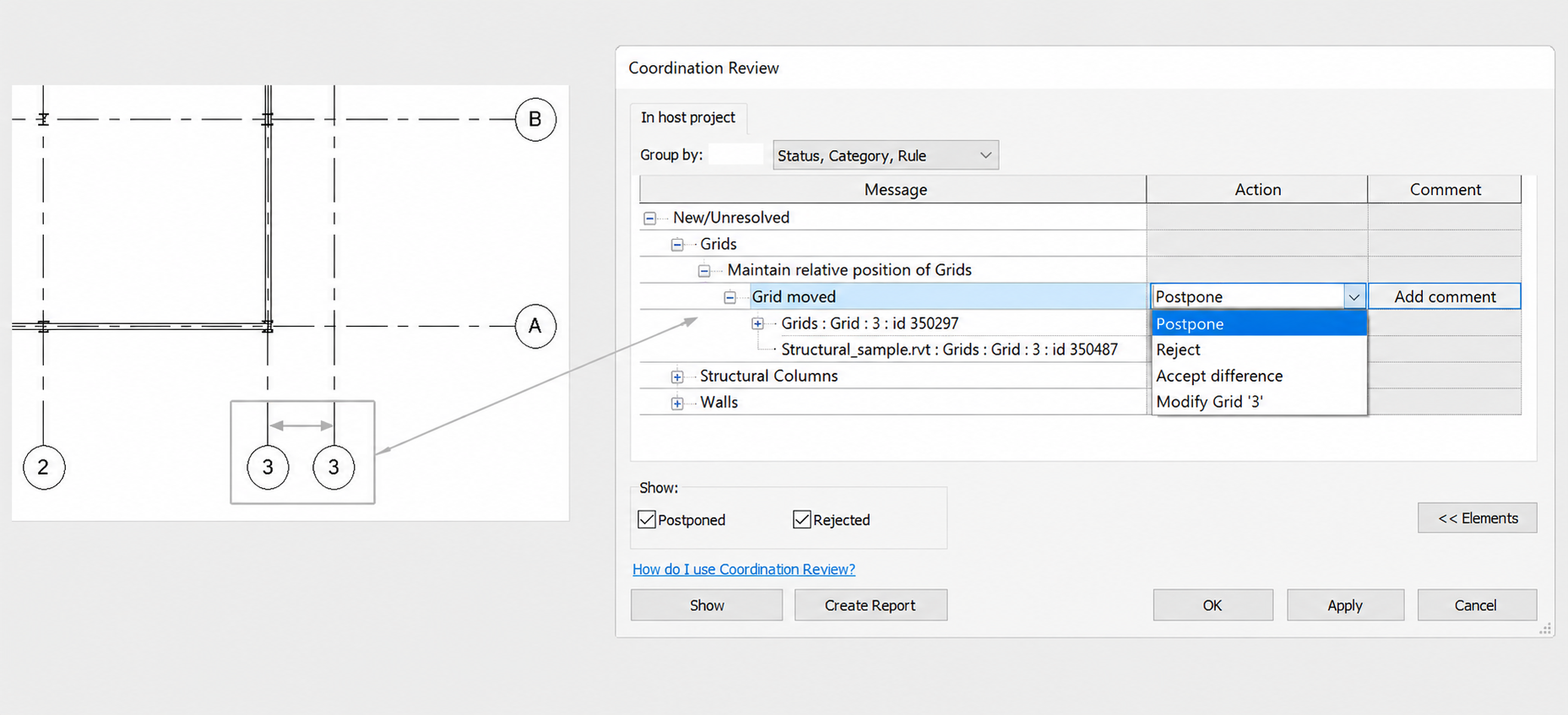
Autodesk describes it well:
"Use comments to communicate with cross-functional team members. When other team members open or reload the linked model and perform a coordination review, they can see these comments for each changed element."
This feature provides specific text for each element, a status update, visibility for other disciplines, and an HTML report that can be exported. It’s fully integrated, requires no cloud services or add-ins, and has been functioning well for over a decade. However, many who ask, "Can I comment on an element in Revit?" may not have used this feature.
The limitation here is that Coordination Review only works on elements managed by Copy/Monitor, and only when Revit detects a change. You can’t start a discussion about a wall that hasn't been modified. Furthermore, there’s only one free-text field for comments, with no author tracking. This means team members might accidentally overwrite each other’s notes rather than having a productive conversation. While it works well for coordinating grids and levels between architectural and structural models, it isn’t designed as a general-purpose commenting tool for Revit.
4. Worksharing editing requests and the Sync comment
These are two unrelated things that often get lumped together. If you try to edit an element someone else owns, Revit sends that person an editing request. Separately, when you use Sync with Central, you can attach a comment to the sync, which can later be viewed in Show History.
The editing request is about as minimal as it gets. There is no message field. The owner sees who is asking and which element they want, then can Grant, Deny, or Show the element. You can retract the request, but that's essentially the entire vocabulary.
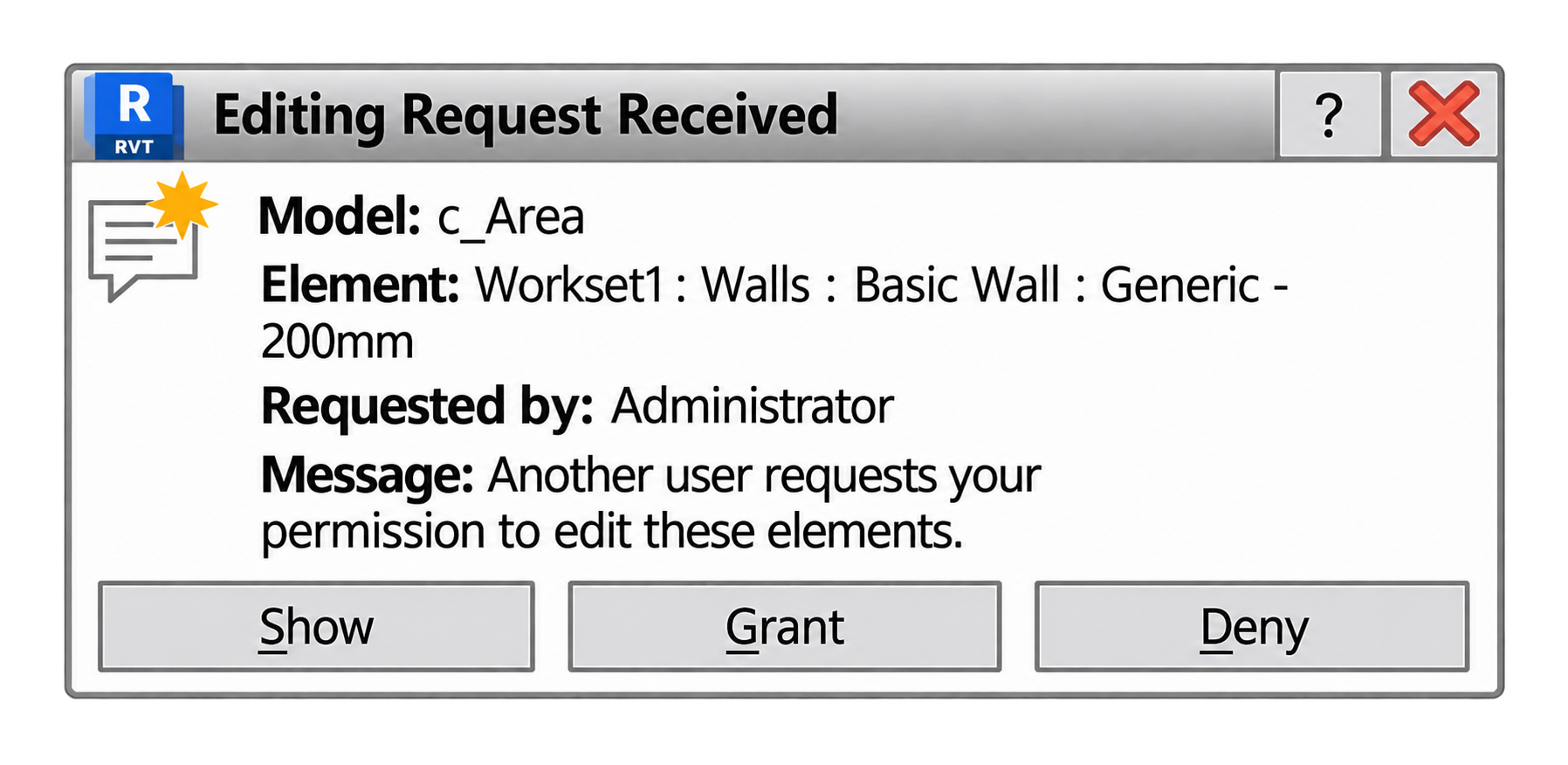
The sync comment is helpful, but it has a drawback. It connects to the entire model instead of just the parts inside. So the sync comment is useful as a change log. Neither tool gives you a conversation about an element.
5. Revit Shared Views and the Autodesk Viewer
Shared Views offer a valuable commenting feature within Revit, often exceeding expectations. By publishing a view from Revit and sharing the link, recipients can access it through the Autodesk Viewer in their browser, allowing them to leave comments, respond to others, and resolve discussions.
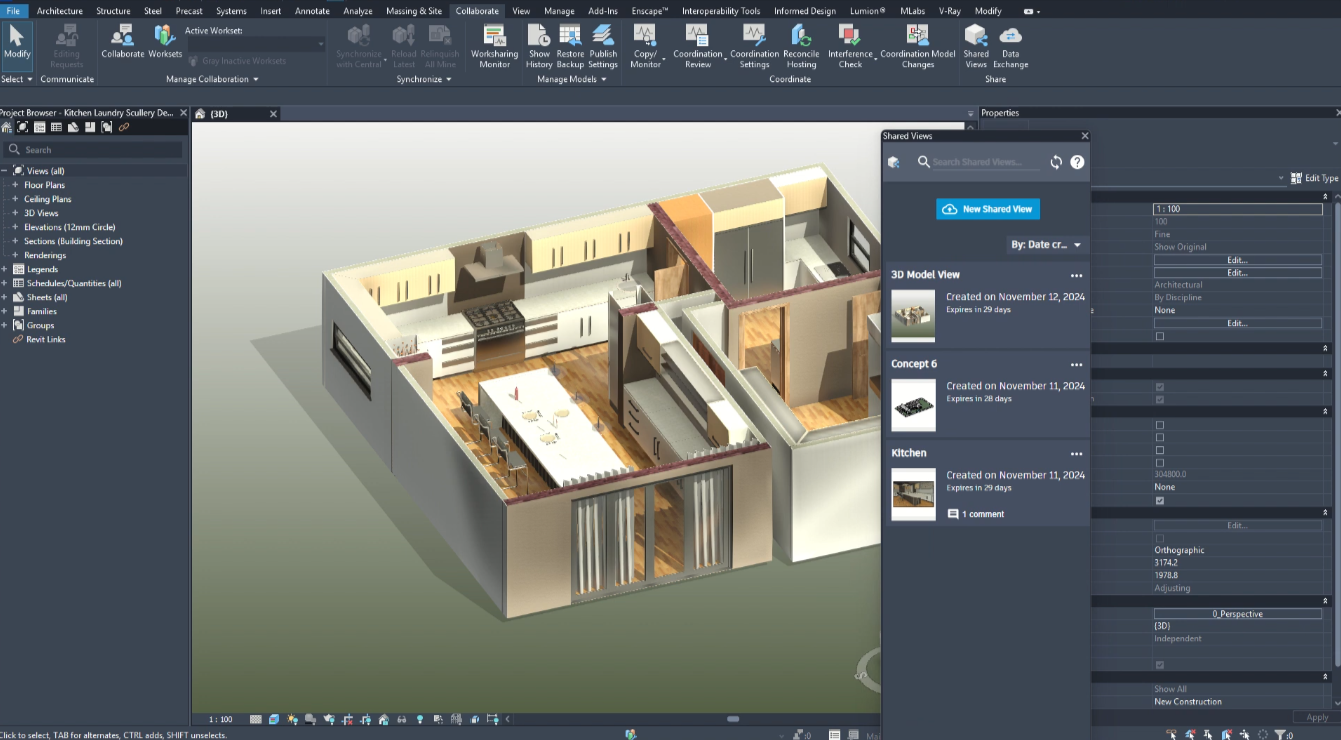
An important aspect to note is that these comments can be integrated back into Revit. Autodesk mentions that "markups and comments are delivered back in context to Revit." Additionally, the Shared Views palette enables users to initiate and reply to threads directly within Revit. (Autodesk Help)
This functionality resembles the comment system many users have asked for. However, it's important to recognize that comments are linked to a cloud snapshot of a view rather than the specific element. If the model changes, the snapshot serves as a record of the conversation based on the model's appearance at that time.
There is also a time limit; Shared Views expire after 30 days by default, though extensions are possible, meaning discussions are not permanently archived. While anyone can view the link without an account, those wishing to comment must have an Autodesk ID and sign in, which can be a hurdle if the reviewer is a client who may not use Revit.
Overall, Shared Views work well for consultant and client reviews when feedback is needed for a specific period and the final decisions are recorded somewhere else.
Group II. Add-ins that place comments within the Revit window
1. Autodesk Issues (native in Revit 2027)
Autodesk Issues is the closest native feature to what most users expect. It adds colored pushpins to the model, complete with a side panel for threaded discussions and nine status options, from "Draft" to "Closed."
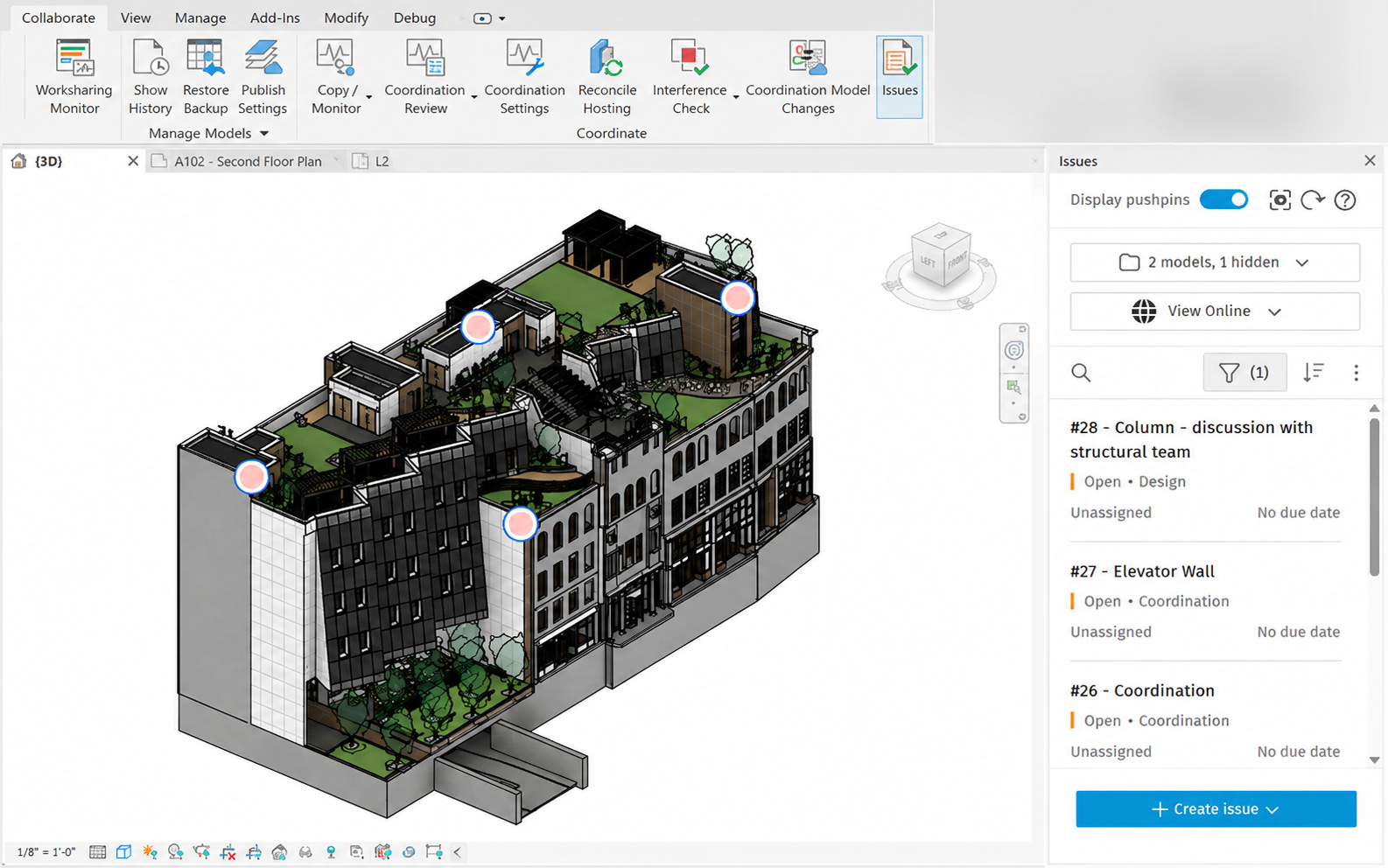
Referred to as "Integrated Issues Management," it's built directly into Revit and works with Forma Design Collaboration, so there's no add-in to install. You can view and manage issues in both 2D and 3D.
If your project is already on the Autodesk cloud, this is a free, convenient solution. But it's important to remember that "no installation" doesn't mean "no cloud." You’ll still need to host your model in the Project Files folder of Forma Data Management, and you can only add issues to published views. There's currently no support for linked files or BIM 360 projects.
There’s also a technical limitation to watch for: pushpins are tied to a coordinate point, not a specific model element. If your model moves or rotates, those pins stay exactly where they were initially placed.
Overall, Autodesk Issues works well for teams already using ACC and Forma with established publishing workflows. However, it’s less ideal for MEP and structural coordination where linked-model workflows are the norm. If your workflow starts in Forma, it’s worth exploring what you can achieve through Autodesk Forma extensions.
2. BCF managers: BIMcollab, BCFier, Catenda, Naviate
BCF managers handle comments via a side panel rather than placing direct markers on your model. They rely on the open BCF format to track issues across different BIM tools, capturing camera positions and component IDs for every entry. When you click an issue, the plugin jumps to the correct location and often highlights the relevant components. It’s effective, but since there’s no physical “sticky note” on the wall, you have to know an issue exists before you can find it.
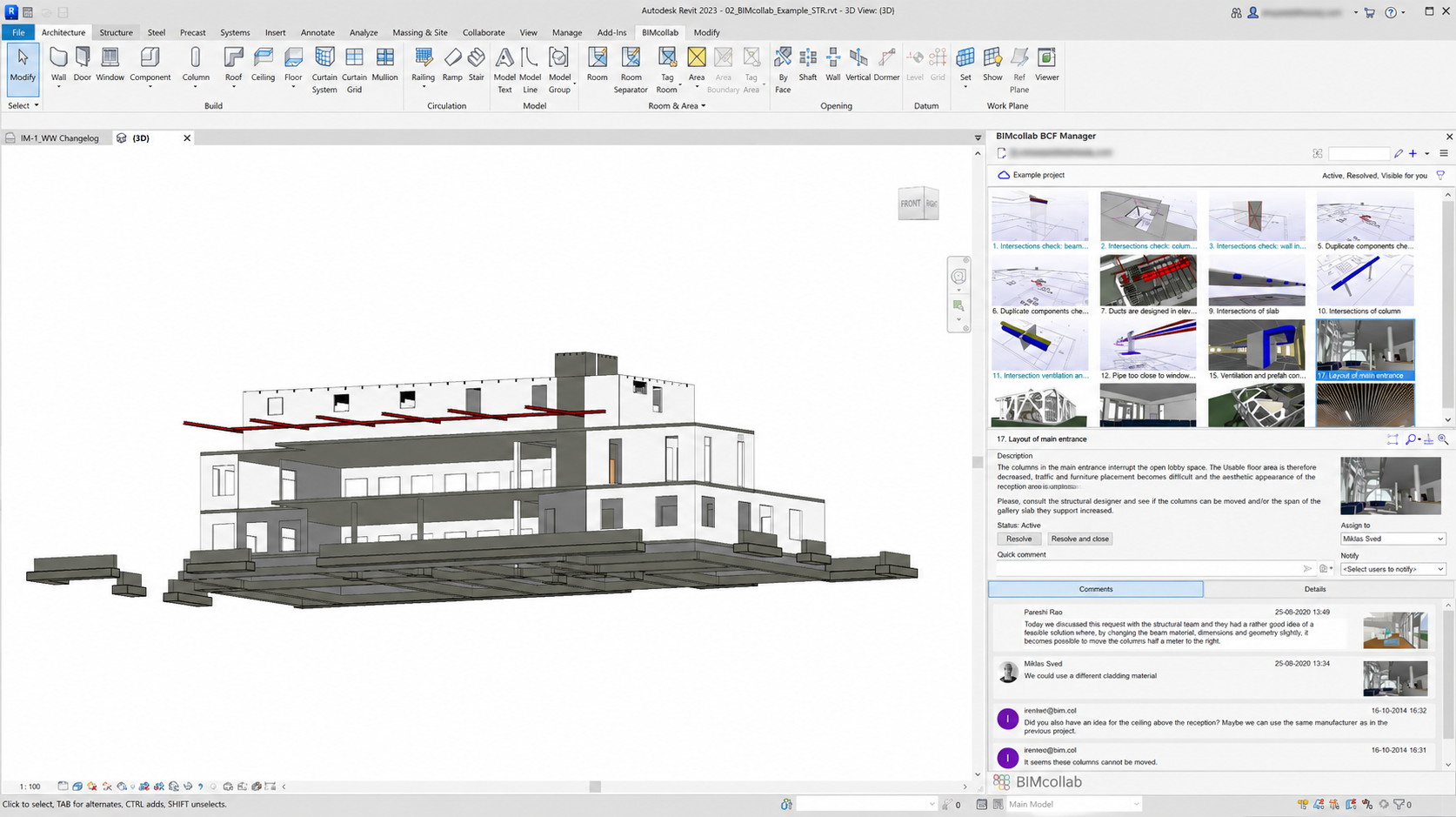
BIMcollab's plugin is free with their platform, which starts at €12.50 per user per month (annual billing). BCFier is free and file-based but largely unmaintained; if you choose that route, check the active IPA.BCFier fork to ensure it’s compatible with your Revit version.
3. CDE add-ins: Newforma Konekt, Procore, Dalux
CDE add-ins use that same panel-based layout but layer on construction management features like @mentions, due dates, and discussion threads that can evolve into RFIs or punch-list items. Tools like Konekt and Dalux let you create, respond to, and resolve issues directly in Revit. Just keep in mind that each platform requires its own SaaS account, project setup, and typically a publish or sync step before the team can start collaborating.
Note: Dalux and other coordination tools are compared in our guide to the best Revit plugins and add-ins.
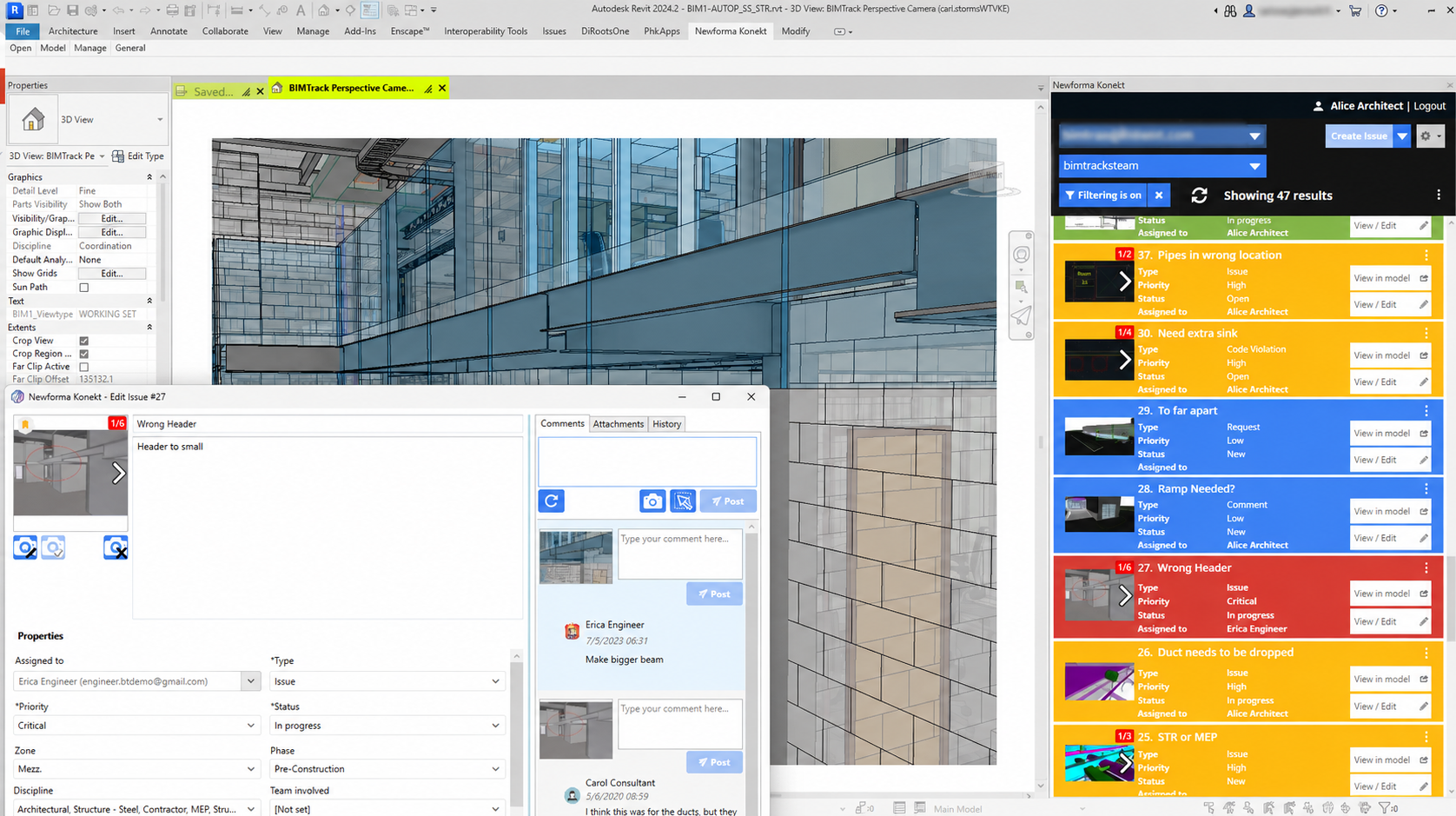
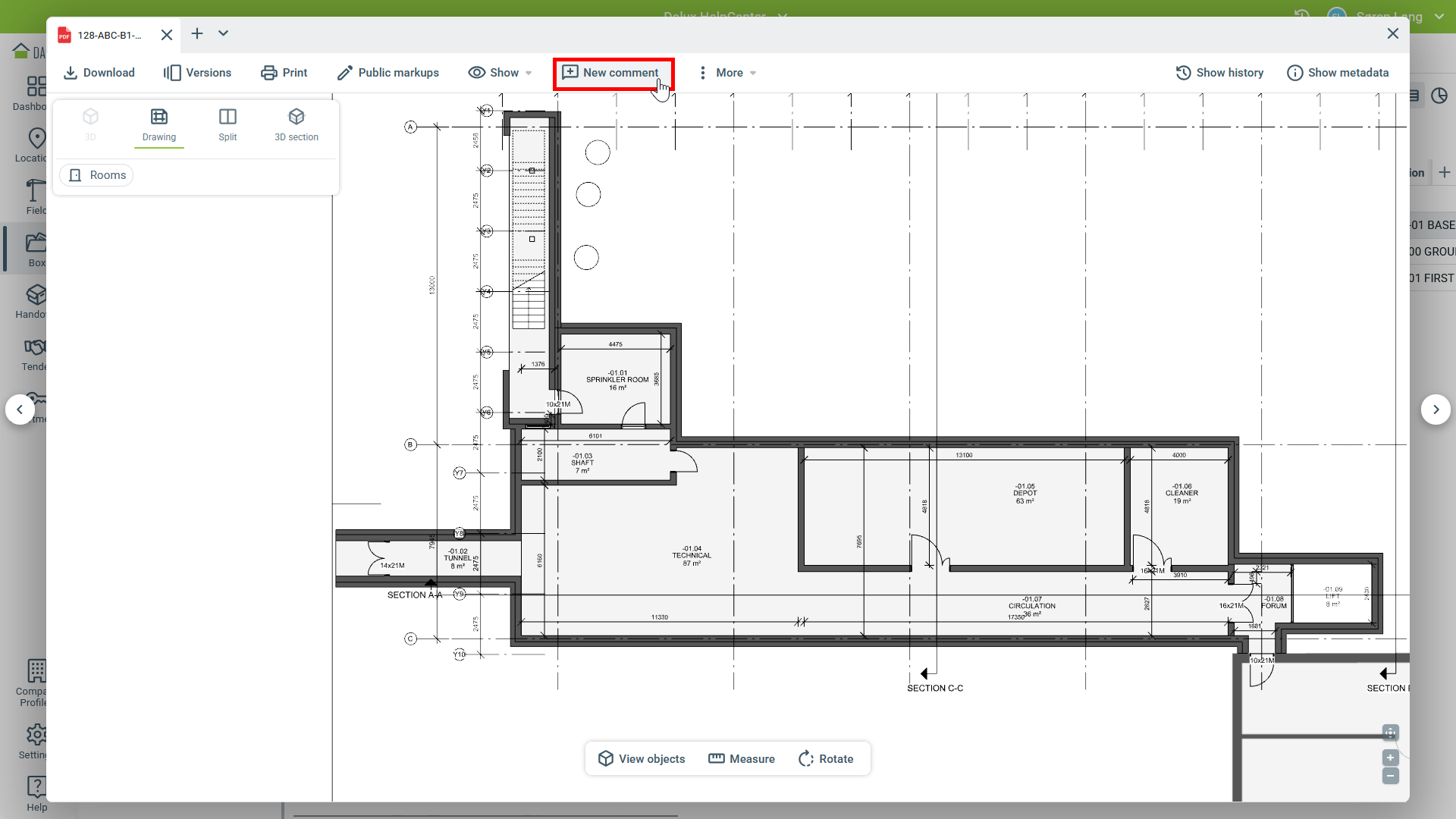
While Newforma Konekt users report costs ranging from $50 to $150 per user per month depending on the deployment, platforms like Procore and Dalux typically provide quotes upon request or bundle these features into their broader construction management suites.
4. Pinly: pinned comment threads inside Revit
Pinly takes the opposite approach of a CDE. Instead of moving the conversation to an external construction platform, it keeps everything inside Revit. You place a pin directly on a model element, and the discussion happens in a side panel. When someone replies or marks it resolved, that history stays attached to the model.
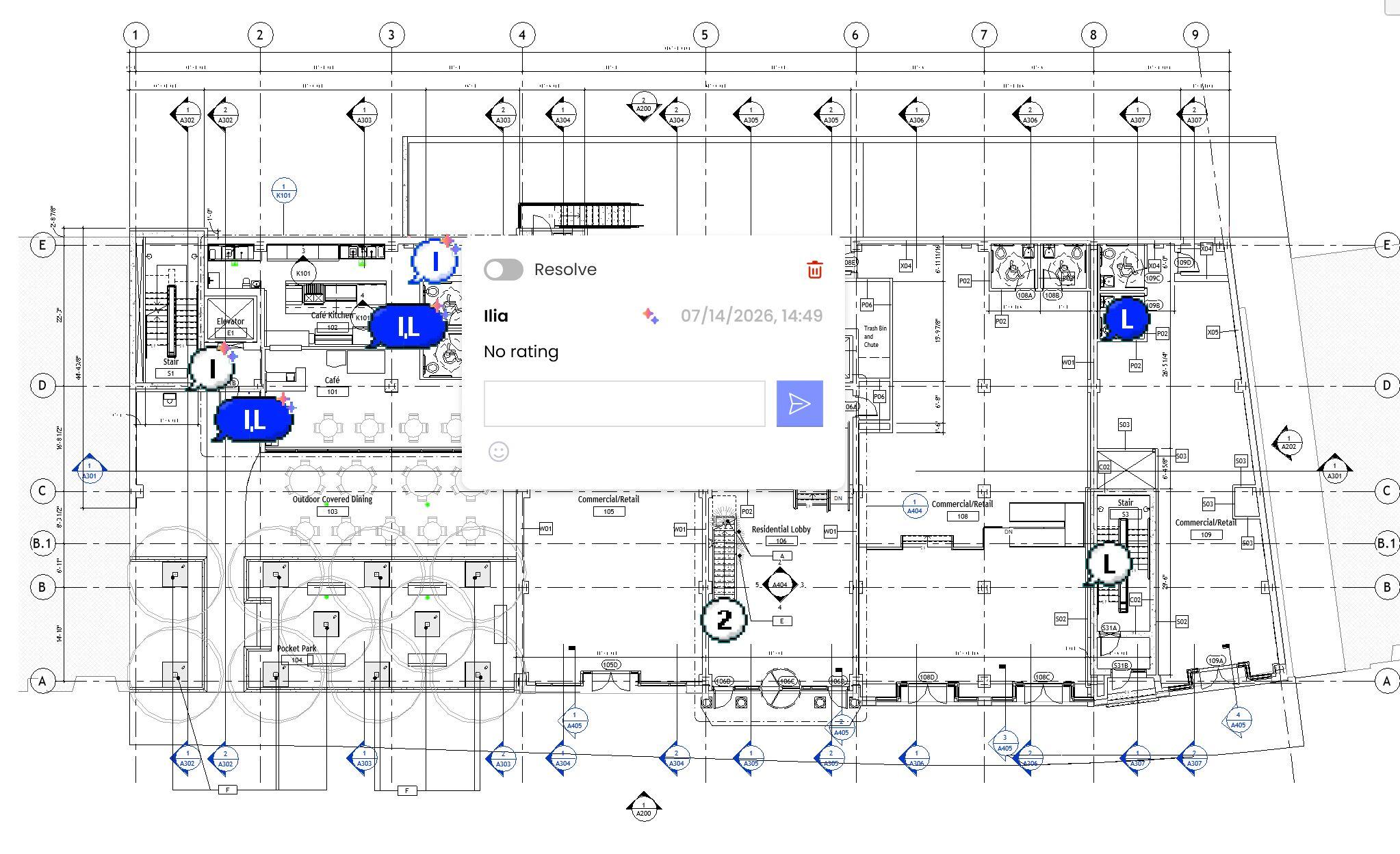
It's designed to be lightweight, so there isn't a massive platform sitting behind it. You don't need to publish views or host your model in a specific cloud folder. It also exposes an MCP endpoint, allowing an AI assistant to read the backlog and act on comments — a concept we've discussed in Agentic AI for Revit blog post.
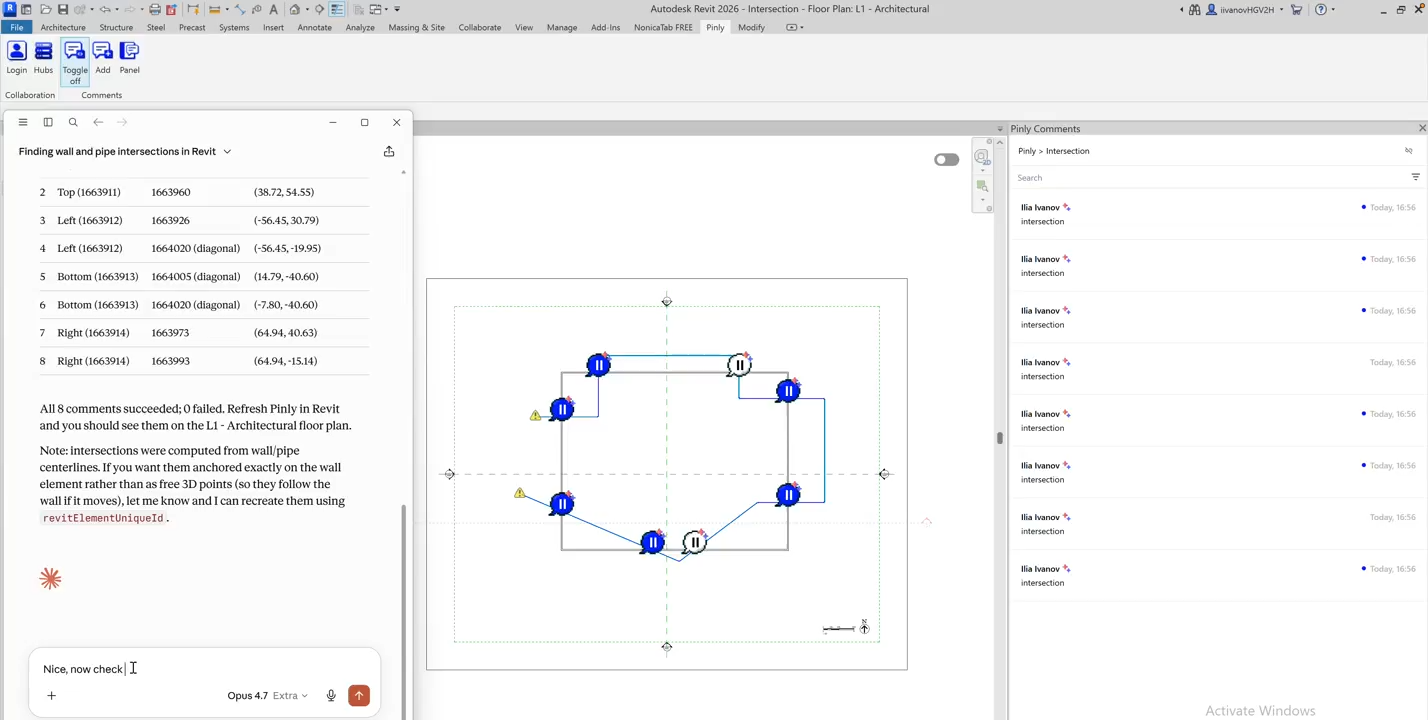
There are trade-offs to this simplicity. The free tier is limited to one seat and three projects, so most teams will need a Pro account from the start. Also, since comments live in the model, they don't automatically turn into RFIs. If your workflow requires everything to end up in Procore, Pinly isn't the right tool for you.
It fits a specific need: design-stage discussions that should stay with the model. It's for offices that want to chat about a wall or a duct without the overhead of running a full CDE.
Group III. Methods that live outside the model
1.PDF markup: Bluebeam Revu and paper
You export the model to PDF, mark it up in Revu, and run a Studio Session if several people need to collaborate. It’s the standard answer for redlines, and it offers one advantage model-based tools struggle to beat: the marked-up set creates a static record that outlives the project — valuable for dispute resolution.
There’s one Bluebeam detail that often gets missed: participants joining a Studio Session in View or Read-only mode still get full access to the markup tools. You don't need a paid seat, so the cost of getting a consultant to redline drawings can effectively be zero.
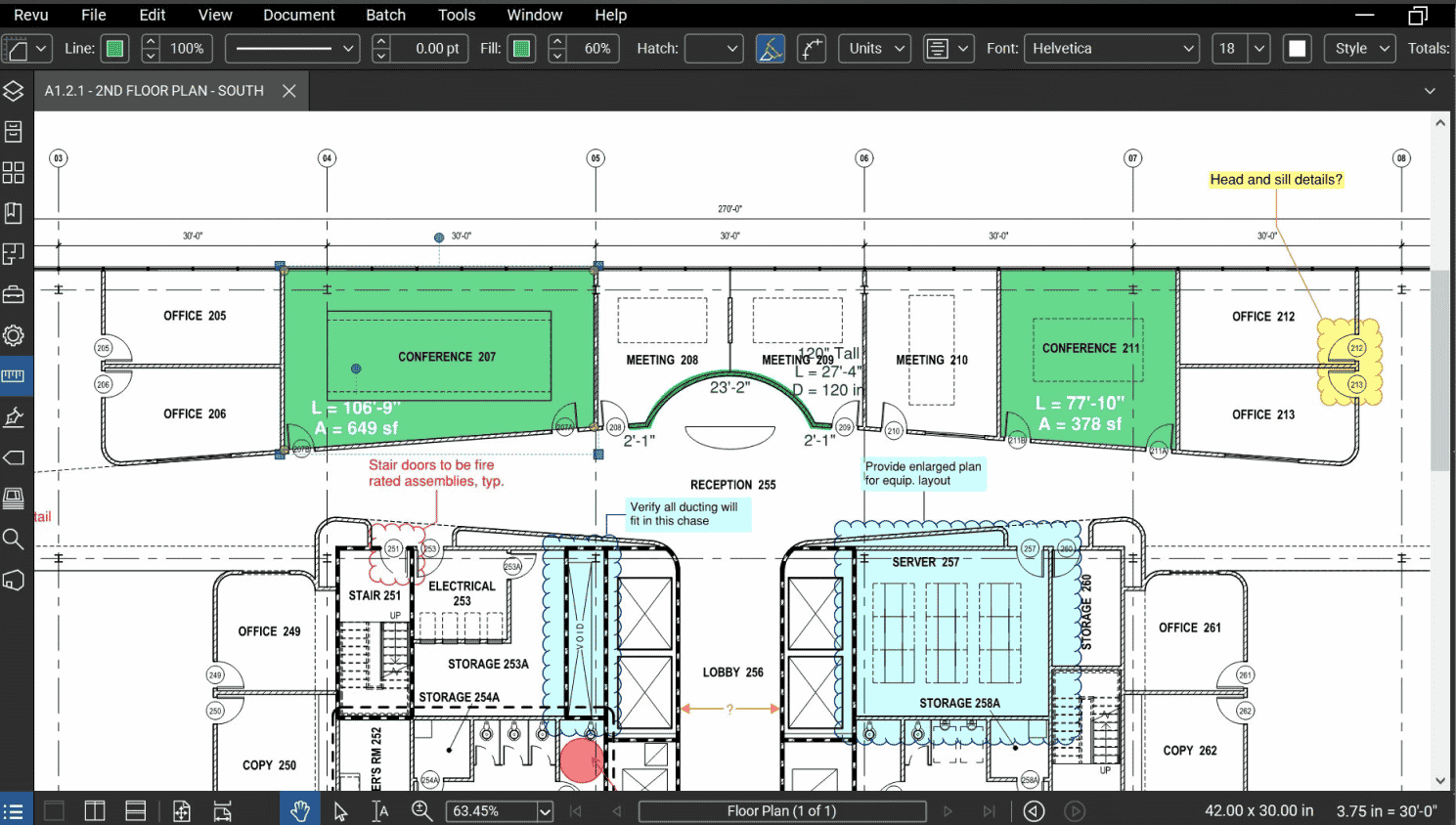
The friction starts once the PDF leaves Revit. The drawing is frozen while the model continues to evolve. Every markup has to be read by a human and manually translated back into the model across plans, sections, and schedules.
That translation step is expensive, but it’s also something that can be automated. It’s the kind of repetitive Revit work design workflow automation can remove, without asking the whole office to change how it reviews drawings.
For formal review packages, client sign-off, and archiving, PDF markup remains tough to beat.
2. Navisworks viewpoints and clash comments
Navisworks approaches coordination differently. First, it federates models and runs the Clash Detective to pinpoint conflicts. Once you've identified clashes, you can save viewpoints and attach status updates or comments to them, or even export them to BCF to move the data between tools.
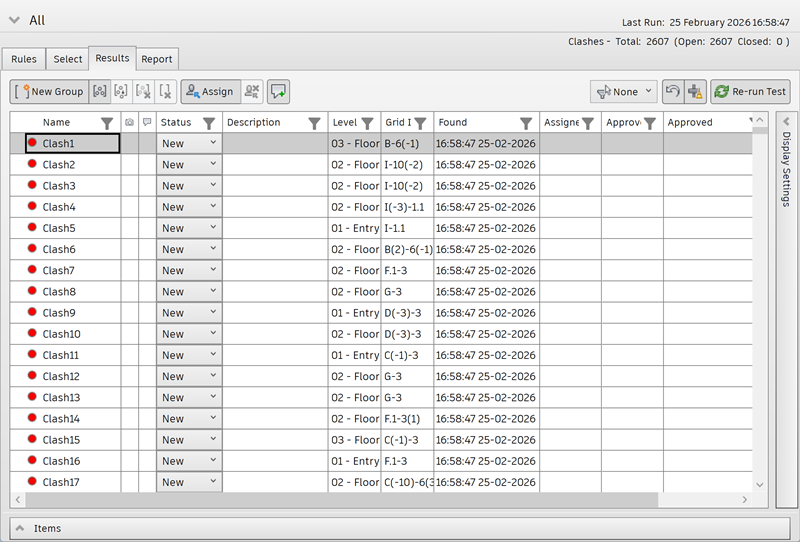
Since comments don't sync back into Revit, SwitchBack can only help you zoom in on the problematic element during a live session. The actual discussion and instructions remain trapped in the NWF file unless someone manually retypes them. This handoff is where teams lose days: a clash is flagged in Navisworks, discussed, and assigned, but then the notes must be manually translated into your design software. It’s the same coordination gap we see across the industry. Still, for clash coordination meetings, Navisworks remains the best tool for the job.
3. Chat, email, screenshots, Excel
Chat, email, and screenshots might not feel like official tools, but they’re often the most common way teams communicate. Sending a quick message with a screenshot is incredibly fast: you capture the issue, send it, and move on. The trade-off, however, is that messages aren't linked to a model element, don't include camera positions, and quickly disappear in a sea of chat history.
This isn't just a fringe workaround; some BIM managers have moved away from complex platforms in favor of Teams because it's more accessible for non-technical team members. That's a valid trade-off, but it comes with a cost. You’ll eventually find yourself managing an Excel spreadsheet to track who’s fixing what, and that spreadsheet will likely be outdated by Tuesday.
Use chat, email, and screenshots when you need a quick, urgent answer. Just remember to move the final outcome to a place where it won't disappear next week.
How to choose a Revit commenting method
Choosing a Revit commenting strategy usually comes down to three simple questions:
- Is the comment for the whole drawing, or a specific part of the model?
If your feedback is just for a sheet or drawing set, simple tools like revision clouds or PDFs (Bluebeam) are enough. Don't overcomplicate it with heavy platforms. But if you need a note to 'stick' to a specific 3D element (like a wall or duct) so it stays visible no matter what view you are in, you need a tool that links directly to the object (see options 1, 3, 6, 7, 8, and 9). - Do you need to track who said what and if it's resolved?
Basic Revit tools (like the Comments parameter or Sync logs) don't track history or authors. If you need a discussion thread, clear ownership, and 'open/closed' statuses, you need a more advanced tool. - Do you require accountability and status tracking?
Native Revit tools like the Comments parameter or Sync logs provide no status tracking or author attribution. Even Coordination Review, while functional, lacks an author trail. True issue management — requiring ownership, resolution states, and threaded dialogue — demands a specialized solution.
Your best choice often depends on the software your team already uses:
- If you’re already in the Autodesk cloud: Use Autodesk Issues. It’s free and built-in, provided you can work within their specific publishing steps and limitations.
- If you’re already using a construction platform (CDE): Stick with tools like Procore or Newforma Konekt to keep your workflow integrated.
- If you need comments directly on the model without the overhead of a large platform: Use BCF managers or dedicated add-ins like Pinly.
If none of these fit, it’s not your team’s fault. The problem usually isn't a lack of discipline; it's just that the tools don't match your actual workflow. The best tool is simply the one your team will actually open on a busy Friday afternoon. And if none of the existing tools fits the way your team works, we’re happy to talk about a custom solution.
Where Revit commenting is heading (2027 and after)
Revit was built for a documentation-first era. While sheet annotation was sufficient then, it fails the current model-centric reality. Teams have spent a decade cobbling together workarounds, from spreadsheets to hiding text in grey-on-grey backgrounds, just to communicate changes.
Autodesk’s "Issues" in Revit 2027 finally acknowledges that comments belong on elements, not just drawings. Yet, a core bottleneck remains: cloud dependency. To use it, your model must live in Forma Data Management, views must be published, and linked files are unsupported.
The real challenge today is the constant need to "publish" the model every time you have a new edit. We believe the future is automation. Imagine an AI assistant that can read your task list and help you solve problems automatically. That’s what we are building with Pinly and the Model Context Protocol. We are moving away from manual data entry toward a world of automatic, intelligent model reviews.
FAQ
How do I add and manage comments directly on Revit elements?
Revit offers a few ways to leave notes and track issues, but they work differently. The Comments field in the Properties palette is the simplest option. You can add a note to an element, but there’s no thread, replies, author information, or issue status. Other Autodesk tools offer more options for coordination and issue tracking. For example, Autodesk Issues lets you create threaded issues with pushpins placed at specific locations. For discussions tied directly to model elements, tools like Pinly provide threads, replies, status tracking, and resolution — all within the Revit workflow.
What are the native and third-party options for marking up 3D models?
Native 3D markup is primarily handled through Autodesk Issues, which allows users to place pins in published 3D views to initiate discussion threads. This workflow requires the model to be hosted in the Forma Data Management environment and doesn't currently support linked models. For teams that need visible markers without relying on specific Common Data Environment (CDE) constraints, third-party add-ins like Pinly are a common alternative.
How can teams track model changes and audit trails in Revit?
Revit doesn't have a central change log, so tracking depends on what you are looking for. You can view Worksharing sync comments using the Show History tool, or track linked model updates through Coordination Review. For formal sheet updates, standard revision clouds do the job. However, if you need a detailed history of individual element modifications, consider a third-party auditing plugin.
Can non-Revit users participate in the commenting process?
Yes. They can use Shared Views or platforms like Autodesk Docs, though they will usually need an Autodesk ID to leave feedback. The easiest workaround is using PDFs. For example, clients and consultants can join a Bluebeam Studio Session and use all the markup tools for free, even if they only have a read-only license.
CEO & Co-founder
Ilia Ivanov is a BIM and AEC software development expert with over 10 years of experience. He specializes in Autodesk Revit, BIM automation, and custom software development for the AEC industry. Ilia shares practical insights on the Revit API, AI-powered engineering workflows, and building tools that help design teams work more efficiently.