Revit 2026 removed voltage drop and wire sizing calculations: 3 workarounds

CEO & Co-founder
Published
Updated

TL;DR
Revit 2026 removed native automatic wire sizing and voltage drop calculations, and Revit 2027 didn’t bring them back. Electrical designers must now rely on manual spreadsheets, custom Dynamo scripts, or dedicated Revit plugins to perform and track these essential calculations.
What happened to voltage drop and wire sizing in Revit 2026?
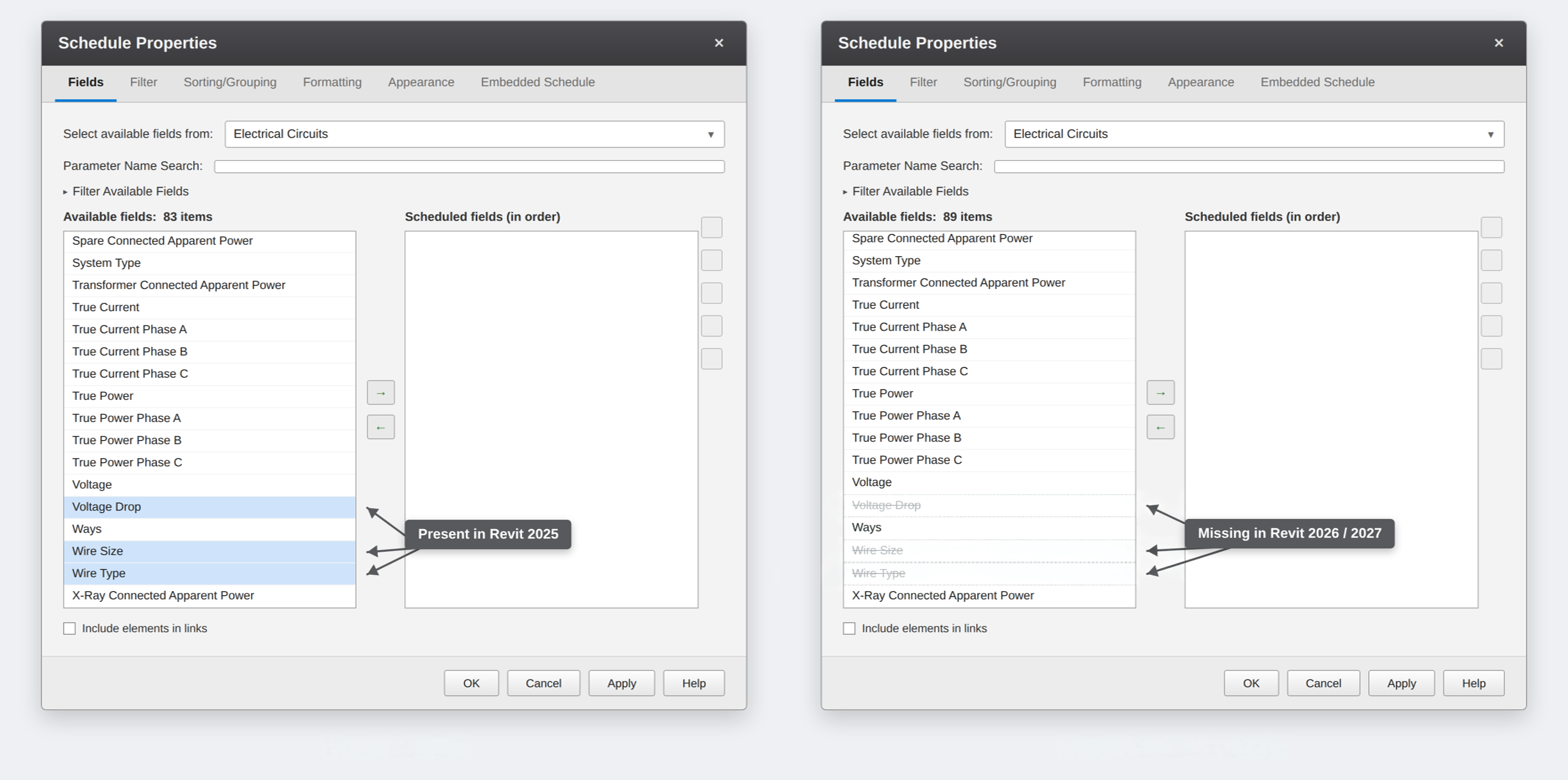
Autodesk overhauled the electrical settings in Revit 2026 and replaced legacy wire rules with a system that gives users manual control over conductor materials, temperature ratings, insulation types and cable configurations.
Along with this update, Autodesk also removed the legacy automatic wire-sizing logic and the default voltage drop calculation field. As stated in Autodesk’s knowledge base, the software is “behaving as designed” and native Revit wire sizing no longer automatically adjusts when circuit lengths increase.
Why did Autodesk remove these features?
The change is closely related to limitations in Revit’s legacy conductor and wire-sizing system.
The previous wire-sizing engine relied heavily on American Wire Gauge standards, automatically assigned sizes without sufficient flexibility, supported a limited set of circuit types, and assumed individual single-core conductors instead of complex cable assemblies. All of these constraints made it difficult for engineers to adapt Revit to international design codes or regional requirements.
Will Revit 2027 bring voltage-drop and wire-sizing calculations back?
There is no indication in Autodesk’s Revit 2027 release materials that the legacy automatic wire-sizing and voltage-drop workflows have returned.
The official release focuses primarily on broader MEP updates, automation, performance, and collaboration enhancements.
3 ways to restore voltage-drop and wire-sizing calculations
There are several ways to handle wire sizing and voltage drop calculations in Revit 2026 and 2027, where these capabilities are still limited.
| Approach | Suitable for | Main advantage | Main drawback |
|---|---|---|---|
| Manual calculation / spreadsheet | Small projects and occasional spot-checks | Free and simple to implement | Requires manual data re-entry whenever circuit lengths, device locations, or loads change |
| Custom Dynamo workflows | Teams with Dynamo experience and specific requirements | Flexible and customizable | Requires ongoing script maintenance and API troubleshooting across Revit updates |
| Dedicated electrical Revit plugin | Regular electrical design work in Revit | Provides automated, end-to-end calculations directly inside the model | Requires software subscription costs and tool evaluation |
With Revit’s built-in automatic wire sizing and voltage-drop workflows no longer available, teams need another way to perform and maintain these calculations.
So far, there have been three practical approaches. These include manual calculation spreadsheets, custom Dynamo workflows, and a dedicated Revit electrical plugin.
Let’s examine each option.
1. Manual calculation spreadsheets
The simplest option is also the cheapest – keep the calculation outside Revit.
For a small project, an engineer can use an approved calculation table, spreadsheet, or another calculation tool to determine the appropriate conductor size and voltage drop, then assign the corresponding cable configuration in Revit.
Pros
The approach gives the engineer direct control over the calculation method, design standard, assumptions and project-specific inputs. It can also work perfectly well when there are relatively few circuits or when calculations are needed only occasionally.
Plus, it’s a practical free workaround for teams that already have a trusted spreadsheet or calculation template.
Cons
The problem appears when the model becomes larger or changes frequently. Every relevant circuit has to be checked, documented, and updated when parameters such as circuit length, load, conductor type or distribution arrangement change.
The calculation may live in a spreadsheet while the design information lives in Revit, so the two have to be kept consistent. In other words, for a project with hundreds of circuits, that manual workload can quickly become difficult to justify.
Summary: when manual calculation makes sense
- You have a relatively small number of circuits
- Calculations are needed occasionally
- Your team already has a trusted spreadsheet or calculation table
- You need a free workaround
- Maintaining a separate calculation workflow is acceptable
2. Custom Dynamo workflows
Dynamo provides a middle ground between manual calculations and a dedicated electrical add-in. It can automate conductor and cable assignments in Revit 2026, plus it enables teams to define their own sizing and voltage-drop rules.
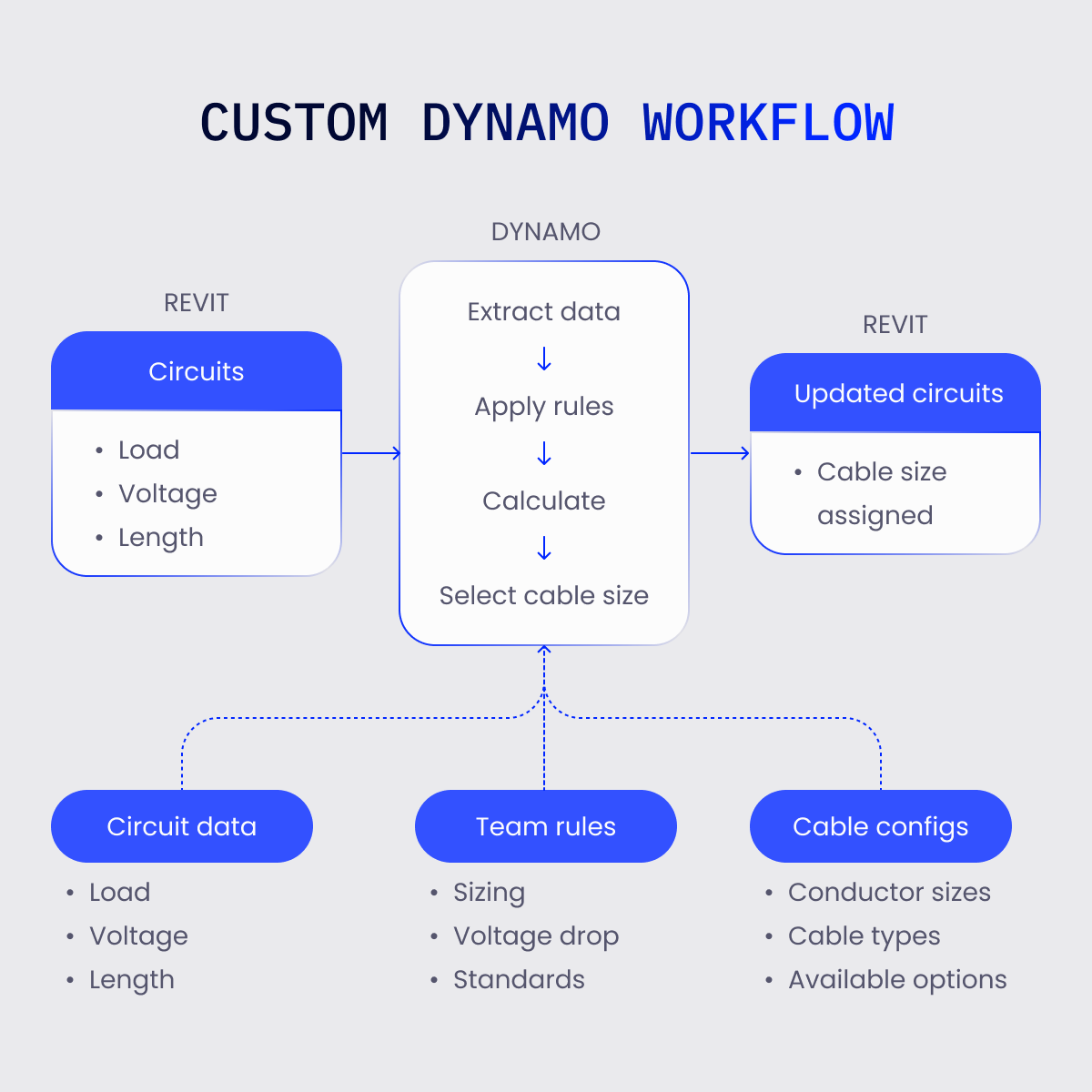
A Dynamo workflow can, for example:
- Read circuit data from the Revit model such as load, voltage, and circuit length
- Apply the team’s sizing and voltage-drop rules
- Select an appropriate conductor or cable configuration
- Assign the selected size to the circuit in Revit
Pros
Dynamo is flexible. A team can build rules around its own standards, project types, exceptions and cable libraries instead of adapting its workflow to a fixed commercial tool. It can also automate repetitive assignments across large numbers of circuits.
Cons
The workflow has to be built and maintained. The script needs to know which Revit parameters to read, how to apply the calculation rules, which cable configurations are available and where to assign the result.
Circuit length deserves particular attention. If the workflow uses circuit length for voltage-drop calculations, it needs to use the appropriate electrical path length rather than simply relying on an unrelated model dimension.
The script may also need updates when design rules, cable configurations, or the structure of the Revit model change.
Summary: when Dynamo makes sense
- Your team already uses Dynamo
- You have a specialist who can maintain scripts
- Your calculation rules are well defined
- You need highly specific custom behavior
- You want to keep control of the automation logic without purchasing a dedicated plugin
3. Dedicated Revit electrical plugin
A dedicated Revit electrical plugin can bring automated wire-sizing and voltage-drop workflows back into the model and these days, there are several solutions to choose from.
One example is Design Master ElectroBIM, which adds automatic feeder and branch-circuit sizing and voltage-drop calculations to Revit. The voltage-drop workflow of this solution uses feeder and branch-circuit conductor sizes together with lengths derived from equipment positions in the Revit model, while allowing engineers to override calculated lengths when needed. The software also provides settings for how voltage drop is handled at transformers, including calculating, ignoring or resetting the voltage drop at each transformer.
Another example is MagiCAD Electrical. Its voltage-drop calculation can be performed from the building’s three-phase main power supply through the distribution network to sub-switchboards to identify the highest voltage drop in the system. The tool also includes protective-device verification, power calculations and short-circuit calculations.
As a third option, consider the Electrical Pack. It evaluates cumulative Revit voltage drop across the entire distribution hierarchy, from the main service panel through sub-panels to the final receptacle. Also, it automatically selects cable sizes while allowing manual overrides and displays connected loads, derating factors, and voltage losses within the calculation workflow. This Revit electrical plugin also supports configurable calculation inputs, including wire data, ampacity, impedance, temperature corrections, adjustment factors, and breaker or fuse ratings.
Plus, it features local Revit add-ins designed around specific electrical standards, including NEC- and DIN/IEC-based requirements.
Pros
A dedicated plugin provides a ready-made calculation workflow without requiring the team to develop and maintain its own Dynamo scripts. Depending on the tool, calculations can also remain connected to the Revit model and be combined with other electrical design functions.
Cons
Any Revit electrical plugin involves recurring licensing costs and requires time for the team to learn and adopt the new workflow. Feature sets and calculation methods also vary, so teams must verify if a specific plugin matches their project requirements and applicable local codes.
Summary: when a dedicated electrical plugin makes sense
- Electrical design in Revit is part of your team’s regular workflow
- You work with a large number of circuits
- Voltage-drop and wire-sizing calculations need to be repeated frequently
- You need to work with specific regional codes such as NEC or DIN/IEC requirements, without building custom workarounds
- You prefer an off-the-shelf supported tool to developing and maintaining custom automation
Bottom line: which option should you choose for voltage drop and wire sizing calculations?
The right choice depends on your project size, calculation frequency, internal expertise and how much customization your team needs.
- If you have a small project and only a few circuits, manual calculation may be perfectly reasonable. There is little benefit in introducing additional automation when the amount of work is limited.
- If you have a strong Dynamo team and highly customized calculation requirements, custom Dynamo workflows give you extensive control over the calculation logic. It's particularly useful when your organization has established rules that need to be applied consistently across projects.
- If you have a dedicated electrical design team working in Revit every day, a specialized plugin is worth considering when you want the calculation workflow to live alongside the model without developing and maintaining the automation yourself. In that case, it can be useful to consult with a plugin provider to understand whether the available tool supports your calculation requirements and existing Revit workflow.
FAQ
Does Revit 2026 still calculate voltage drop and wire sizing automatically?
No. Autodesk removed legacy automatic wire sizing and default voltage drop calculation parameters in Revit 2026.
To perform these calculations, electrical engineers must now rely on manual spreadsheets, custom Dynamo scripts, or a dedicated Revit electrical plugin.
Will Revit 2027 restore native automatic wire sizing and voltage drop features?
No. Official Revit 2027 materials don't show the return of the legacy automatic wire-sizing or Revit voltage drop workflows.
Which calculation workaround is best for my electrical design team?
So far, there have been three practical approaches: manual calculation spreadsheets, custom Dynamo workflows, and dedicated electrical Revit plugins.
- Manual spreadsheets suit small projects with few circuits when you need a free workaround
- Dynamo is good if you have a BIM specialist to build and maintain custom automation logic
- For teams doing regular electrical design in Revit with large circuit volumes, a dedicated Revit electrical plugin is best to keep calculations connected to the model
CEO & Co-founder
Ilia Ivanov is a BIM and AEC software development expert with over 10 years of experience. He specializes in Autodesk Revit, BIM automation, and custom software development for the AEC industry. Ilia shares practical insights on the Revit API, AI-powered engineering workflows, and building tools that help design teams work more efficiently.