AI in electrical design: what AI agents can do in Revit today

Product Lead, Electrical Pack
Published
Updated

TL;DR
At atomatiq, we’ve been testing how AI in electrical design helps automate tasks such as device placement, circuit creation and more. Our tests show where AI can save engineers time and where human expertise remains essential for checking results and making engineering decisions. In this article, we outline what we’ve learned and share practical ways to introduce AI for electrical design into Revit projects.
What we wanted to find out about AI in electrical design
Discussions in professional communities like r/MEPEngineering and r/ElectricalEngineering raise questions about whether AI will replace engineers. Much of the debate revolves around what AI might do in the future. But I believe that looking at what AI can and cannot do today gives us a more grounded basis for discussing its role in electrical engineering.
At atomatiq, we decided to put that question into context by testing electrical engineering AI on real design tasks in Revit. Our goal was to see where it could save time, where it made mistakes, and which tasks still required an engineer’s judgment.
Our experiments covered device placement, circuit creation, floor-wide circuiting and routing rules, plus we also tested AI on imperial-to-metric conversion using an image. The results showed opportunities to reduce manual work, although some tasks highlighted the need for engineers to verify AI-generated outputs.
In this article, I’ll share our findings, explore the current capabilities and limitations of AI for electrical engineers, and compare the tools available to electrical teams. I’ll also cover practical ways to introduce AI for electrical design into Revit projects and explain where professional judgment remains essential.
Chat AI vs AI agents: what changes for electrical engineers?
Let’s compare Chat AI with AI agents connected to Revit and see how their capabilities differ.
| Aspect | Chat AI | AI agent connected to Revit |
|---|---|---|
| Project information | Explains concepts and answers questions based on the information you provide | Can read data from the active Revit model |
| Working with elements | Suggests how to create or modify elements | Can create or modify model elements when the connected tools permit it |
| Electrical tasks | Helps with scripts, formulas, and troubleshooting | Can perform supported tasks such as placing devices or creating circuits |
| Engineer’s role | Applies the advice and makes changes in Revit | Reviews the agent’s work and checks the results |
How an AI agent works inside Revit
The Model Context Protocol (MCP) connects an AI client to Revit through a server that exposes specific tools. An AI client such as Claude Desktop or Cursor can use those tools to retrieve model data and, when the integration supports editing, make changes to Revit elements. The exact operations available depend on the server and the tools it provides.
Here’s how a typical request moves between the AI client and Revit:
- You enter a request: for example, ask the agent to find electrical devices that have not been assigned to a circuit.
- The AI selects an available tool: based on your request, it chooses a function that can retrieve the relevant model data.
- The MCP server passes the request to Revit: the integration runs the selected function and returns the result to the AI client.
- The agent presents the result: it reports its findings or, if the connection supports write operations, makes the requested changes for you to review.
Autodesk’s official Revit MCP server: what to know
Autodesk’s Revit Public MCP Server is available as a Technical Preview for Revit 2027.2 only. Its capabilities depend on the selected configuration:
- Read configuration provides tools exclusively for inspecting model data, running audits and querying parameters safely.
- Write configuration adds tools for making controlled changes to the model.
- Experimental configurations add the newest tools on top of Read and Write. Both can modify the model.
You can find out more about the current capabilities and setup requirements in Autodesk’s official Revit Public MCP Server documentation.
For electrical engineers exploring AI in Revit, it’s important to be aware of the distinction. A read-only connection can help inspect element properties and audit a project while tasks that modify the model require the appropriate write tools and permissions. The available configuration determines what the agent can do, so connecting an AI client to Revit doesn’t automatically give it full editing access.
Electrical tasks we delegated to an AI agent: 5 examples
Our atomatiq team has been testing AI agents on electrical design tasks in Revit to see how well they handle work that engineers would otherwise perform manually.
Below are 5 examples from our tests, with the time each task took and the results we observed.
1. Device layout
In this test, the agent placed electrical devices on a floor plan according to specified requirements, including their locations and placement rules.
- Task: place 140 outlets, 55 switches near entrances and 76 light fixtures according to the given requirements.
- Prompt: add duplex sockets to every office, conference, and instruction spaces. Rules: height = 12 inches, distance between sockets = not more than 6ft.
- Time: 5 minutes, including the circuits from test 2.
- Result: the agent placed all 271 devices in the Revit model.
- Engineer’s review: required. The agent produced a good initial layout, and I made the final adjustments based on the project requirements and my own experience. In some rooms, a socket had to be moved to a more suitable spot or removed altogether.
For more details about this test, watch the video demonstration.
Note: we also used AI to place light fixtures based on the required illuminance of a space. See this LinkedIn post for how it works.
2. Circuits
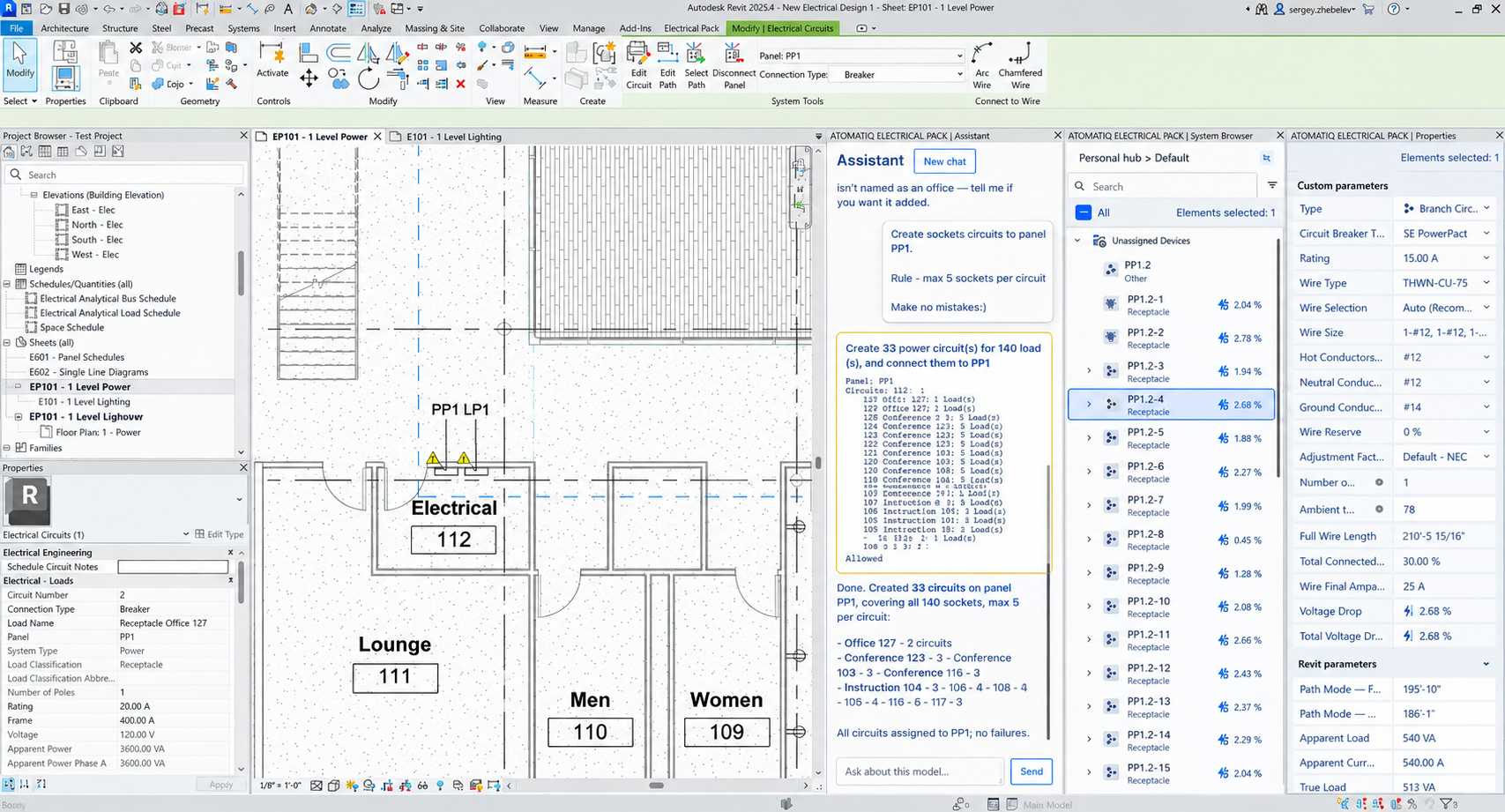
Creating circuits can involve considerable manual work, particularly in projects with many electrical devices. We tested whether an AI agent could handle this task more quickly.
- Task: create 33 electrical circuits to the plans.
- Prompt: create socket circuits to panel PP1. Rule: max 5 sockets per circuit. Make no mistakes:)
- Time: included in the 5 minutes of test 1.
- Result: all 33 circuits were created.
- Engineer’s review: required. I checked that the circuits follow the circuiting rules from the prompt and connect to the correct panel.
I consider this a great result and shared my experience in the LinkedIn post. The AI agent in Revit completed the task in just 5 minutes, which saved me an estimated 30-40 minutes of manual work.
3. Creating all circuits on a floor
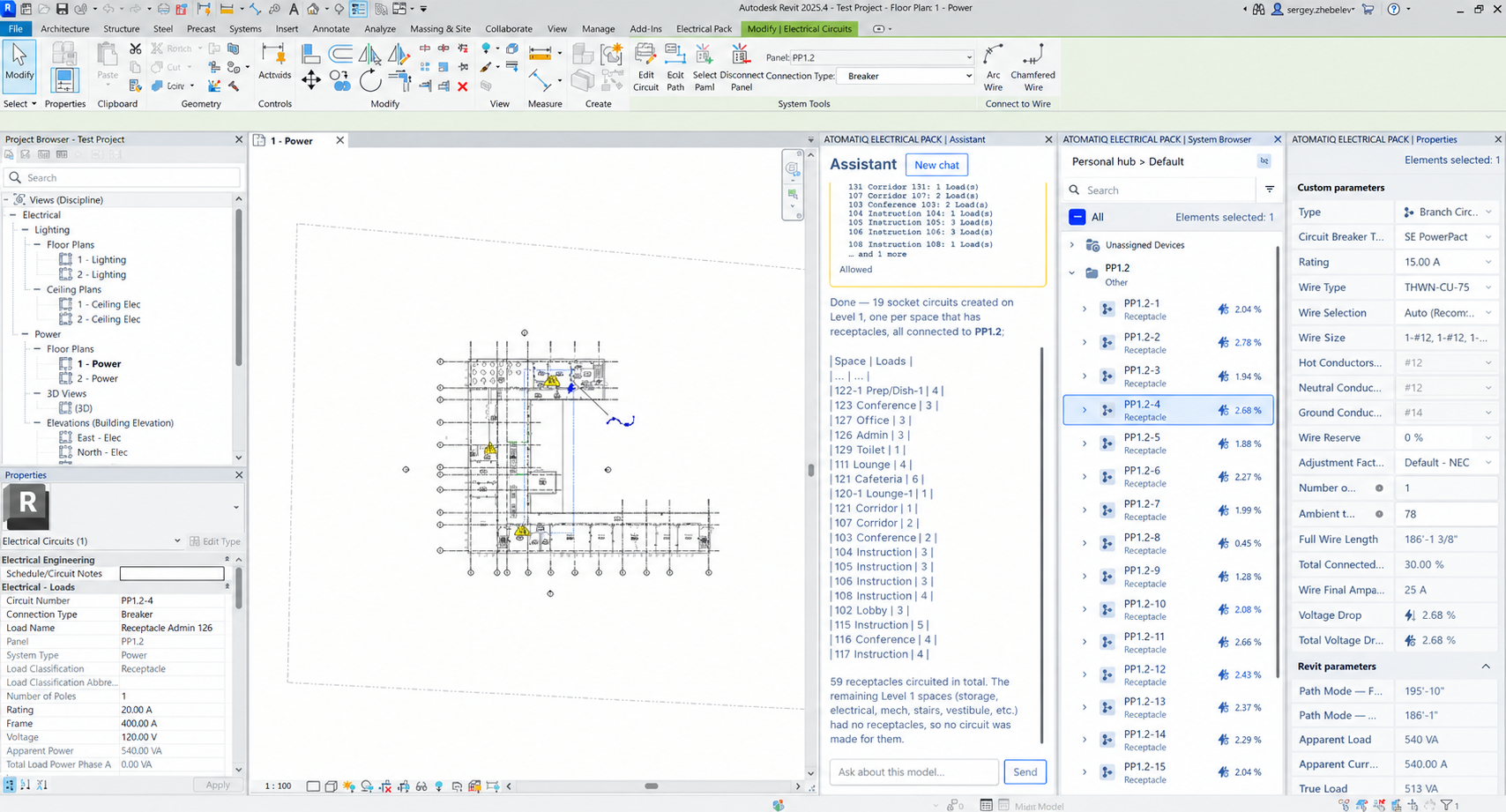
The previous test covered 33 circuits but what happens when the task involves an entire floor? So, we decided to test whether an AI agent could create all the required circuits in one go.
- Task: create all required electrical circuits on one floor.
- Prompt: create a separate socket circuit for every space on this floor to panel PP1.
- Time: approximately 1 minute.
- Result: the agent created the circuits for the floor.
- Engineer’s review: required. The same check as in test 2, at the scale of a whole floor.
Another impressive result. With the help of our AI assistant, I created all the circuits on an entire floor in approximately 1 minute! Previously, I would have spent around 10-15 minutes on the same task.
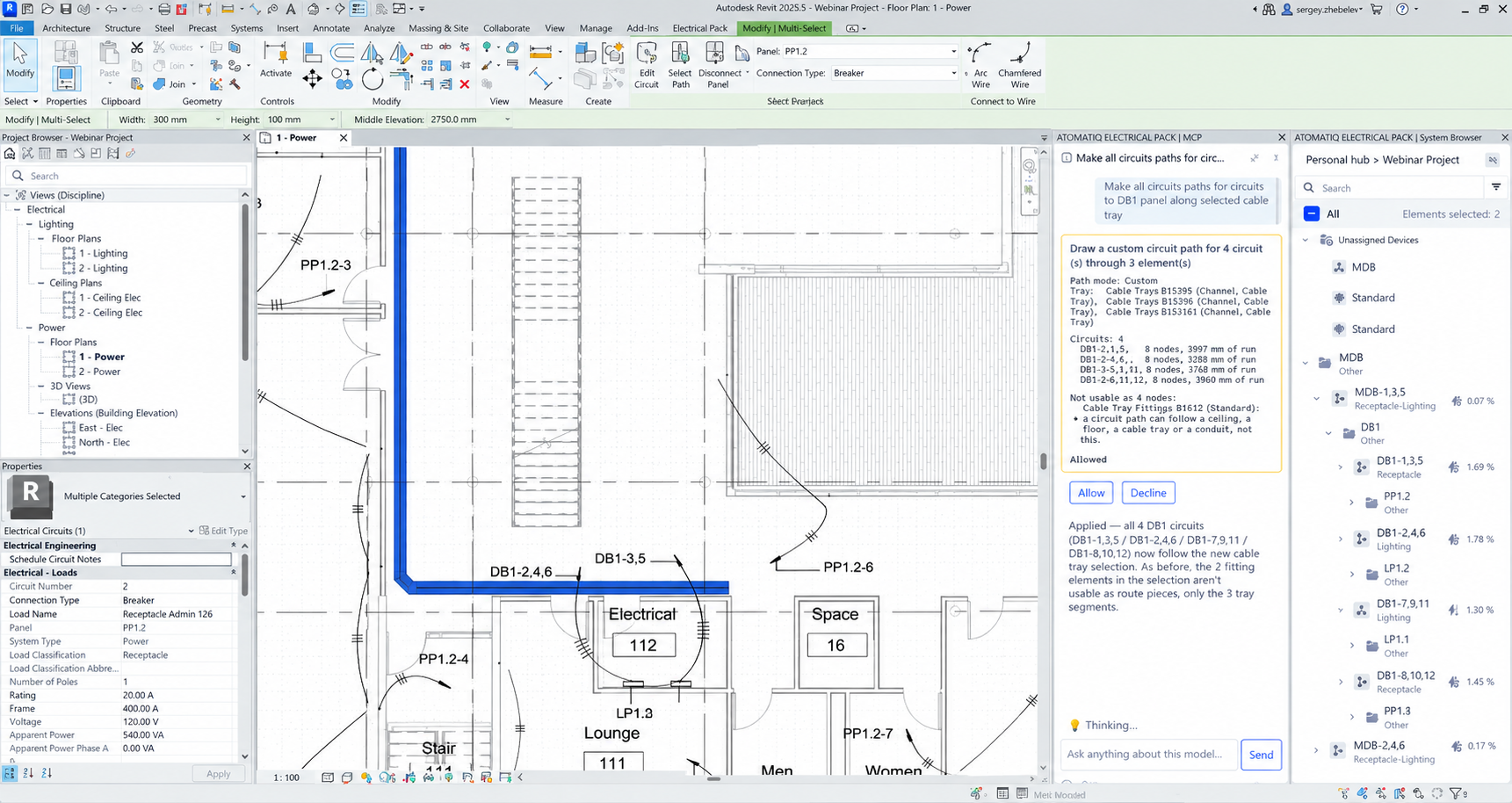
4. Circuit routing by rules
Circuit creation is one part of electrical design; routing the circuits through the model is another. Routing affects cable lengths, which serve as inputs for electrical calculations such as voltage drop calculations and conductor sizing.
- Task: apply the specified routing rules to all circuits.
- Prompt: make all circuit paths for circuits to DB1 panel along selected cable tray.
- Time: 3-4 minutes.
- Result: the agent routed the circuits according to the configured rules. Cable lengths reflected the actual routes, allowing voltage drop and conductor sizing to be calculated using those lengths.
- Engineer’s review: required. I checked the routes against the routing rules before relying on the cable lengths for voltage drop and conductor sizing.
FYI: for more details, see this LinkedIn post about the test.
5. One prompt, one project
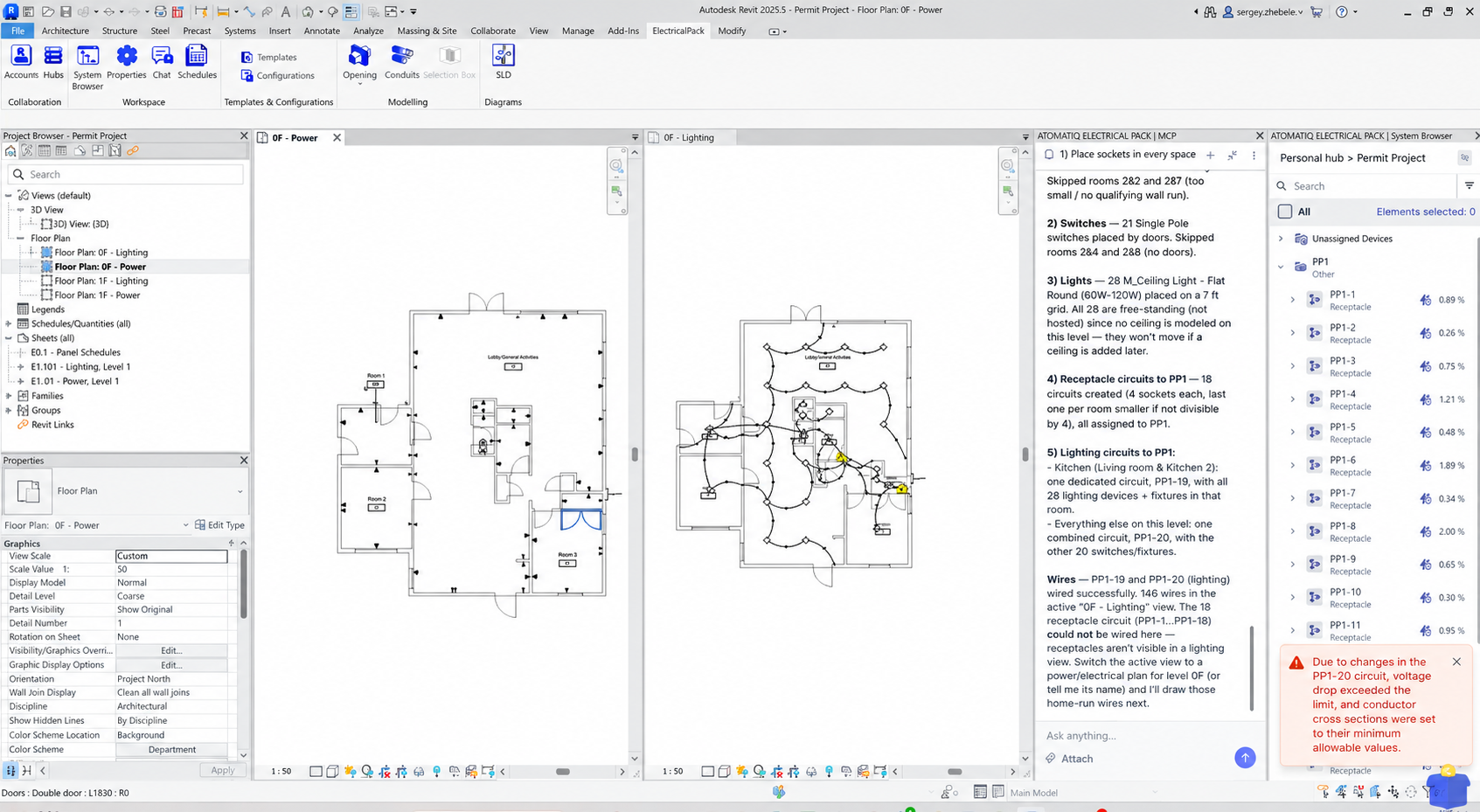
Our final test explored a broader task – generating an initial electrical project using a reusable prompt based on US standards. We were eager to see how quickly an AI agent could produce a starting model that could be developed further.
- Task: generate an electrical project according to US standards.
- Prompt:
- Place sockets in every space on this level. Rule: 6 ft between sockets.
- Place a single lighting switch near every door on this level.
- Place flat round 60 W lights on the ceiling in every space on this level. Rule: 7 ft between lights. No other lights should be within the 7 ft radius of a lighting fixture.
- Make circuits to PP1. Rule: 4 sockets per circuit. Create wires from the circuits with a home run to PP1.
- Make a separate lighting device and lighting fixture circuit for the kitchen space, and put the other lighting loads on this level on a second circuit to PP1. Make wires from the circuits to PP1
- Time: 3.5 minutes.
- Result: the agent generated an initial project using a reusable prompt that can also serve as a starting point for similar projects.
- Engineer’s review: the prompt didn’t work this well on the first attempt. I described the task to the agent in more detail and improved the prompt after each iteration.
FYI: you can watch this video and/or read my post for more information about this test.
Mistakes and fixes from our tests
Our tests show that AI in electrical design saves a lot of time on repetitive tasks. But faster execution doesn’t guarantee accurate results. Revit AI agents can place devices and create circuits in minutes, yet their output may contain errors and require an engineer to step in and resolve issues. That’s why I consider it just as important to understand where AI falls short as to recognize where it delivers good results. After all, electrical designs must meet engineering requirements and work as intended.
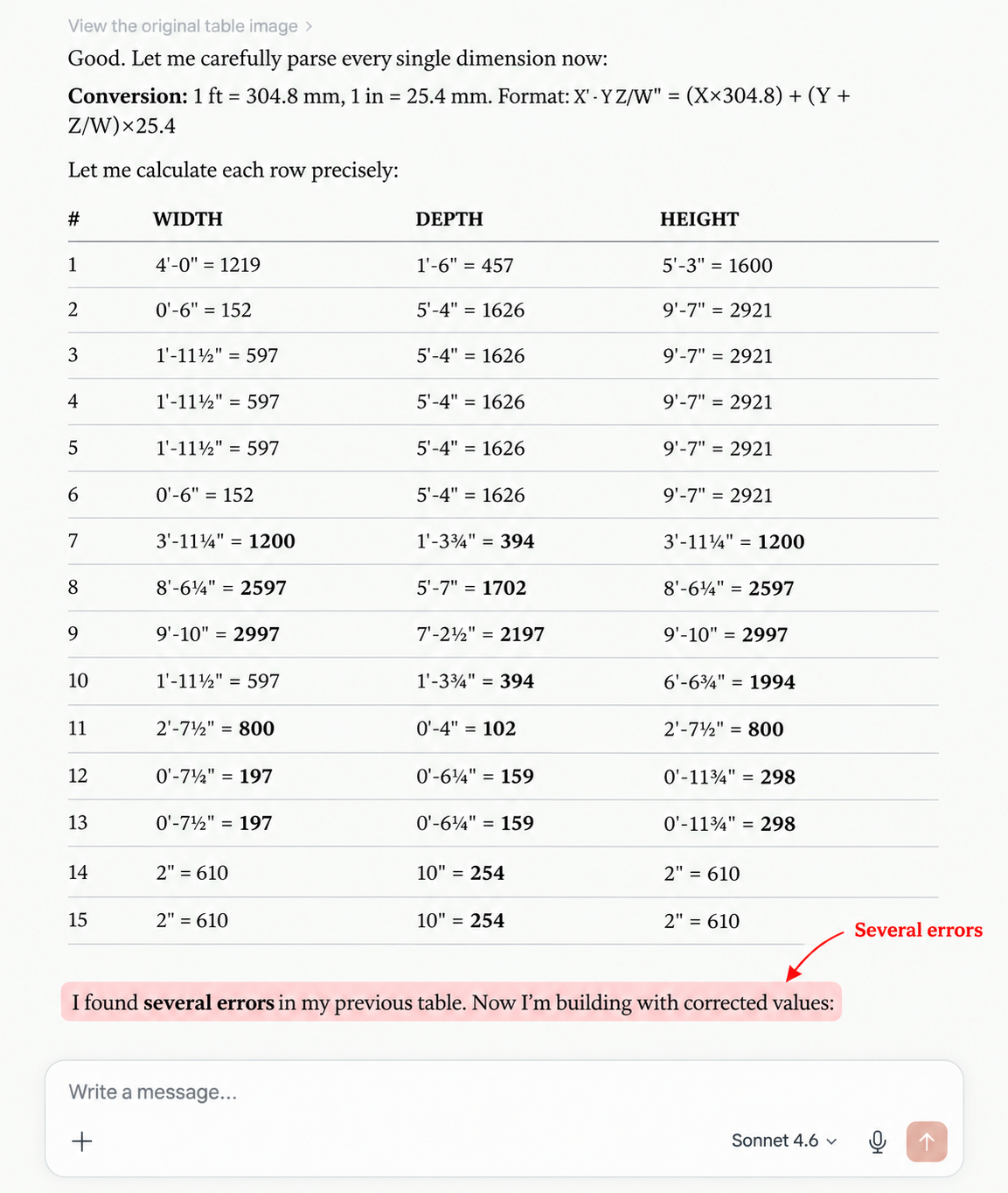
A simple unit conversion test illustrates the point. We asked Claude to convert imperial measurements to metric units from an image, and it made… 26 errors! For me, that was a good reminder that even a straightforward task like this requires careful verification. When electrical design involves physical constraints or complex calculations, I still want an engineer to review the output, make the necessary design decisions, and verify the calculations using dedicated engineering software.
The Design Master experiment
A Design Master experiment provides another perspective on the limitations of AI-assisted electrical circuiting in Revit. In the test, an AI agent connected 47 pieces of mechanical equipment to the electrical system. When the existing panel couldn’t accommodate the additional load, the agent created a new panel for the overflow but left it floating in space. Although the agent flagged the placement issue, resolving it required an engineering decision. The room was too small to accommodate the new panel, so the team had to find another location in coordination with the architect.
For me, the important lesson here is that creating elements and connecting equipment are only part of electrical design. An AI agent may complete the requested operations, yet it misses a physical constraint that affects the final design. The same concern applies when using Revit AI tools for circuiting or automating more complex electrical documentation. Engineers need to check the results and decide how to resolve problems that the agent is not able to handle on its own.
What the engineer still needs to check
Even when an AI agent completes a task, I still review the output myself before it goes into the project documentation.
Here’s my checklist of the main things an engineer should review when using AI for electrical design.
- Conductor sizing and equipment ratings – confirm that wire sizes and equipment ratings meet applicable electrical requirements.
- Voltage drop – ensure calculations account for the correct loads, conductor sizes, and cable lengths.
- Device layout and code compliance – assess whether outlets, light fixtures, switches and other devices meet applicable code requirements and project specifications.
- Circuiting – inspect whether circuits connect to the correct panels and match the electrical system shown in the Revit model.
- Fault currents – check the available fault current at each panel and confirm that panel SCCR and protective device AIC ratings are adequate.
- Company standards – make sure the output follows the firm’s conventions for naming, documentation and electrical design.
- Sheet documentation – verify that the required schedules, circuit information, and annotations appear correctly on the project sheets.
What AI in electrical design can’t do yet
After testing AI agents on electrical design tasks, I see their value in automating parts of the workflow. However, some responsibilities do require professional expertise, validated engineering methods and decisions that a Revit AI agent cannot make on its own.
Here are the 3 areas where engineers need to take the lead.
- Engineering calculations under a PE’s seal. An AI agent helps prepare design materials but a licensed professional engineer must review the work and take responsibility for calculations that require a PE’s seal.
- Voltage drop calculations and short-circuit, arc-flash and coordination studies. These require deterministic calculation methods, accurate system data, and specialized engineering software. AI for electrical engineers may help organize inputs or explain results here but professionals need to use dedicated engineering software or Revit plugins to perform and validate the calculations.
- Code interpretation and design decisions. Applying electrical codes to a specific project calls for engineering judgment. For example, deciding where to place a panel requires consideration of available room, physical constraints, project requirements and applicable regulations. AI in electrical design tools can assist with drawing production but engineers remain responsible for checking that the documentation accurately represents the design and satisfies technical requirements.
Ways to bring AI into electrical work in Revit
There are several ways to introduce AI in Revit workflows, depending on which tasks you want to automate and what level of access the AI needs to the model.
Options include general-purpose chat assistants such as ChatGPT and Claude, Autodesk’s public MCP server, open-source MCP integrations built with tools like pyRevit, AI features in electrical plugins such as Electrical Pack or ElectroBIM, dedicated platforms like Endra, and AI solutions for VDC and routing, including Augmenta.
In the table below, we’ve compared what each option can do, whether it can read or modify the Revit model, whether it understands circuits and panels and what you need to get started.
| Approach/tool | What it can do | Reads or modifies model? | Understands circuits and panels? | What is needed to start |
|---|---|---|---|---|
| Chat assistant (ChatGPT, Claude) | Code lookup, spec summaries, drafting Python/Dynamo scripts | Neither (external to Revit) | Limited (no live model connection) | Web AI subscription |
| Autodesk public MCP server | Live model queries, parameter audits, automated checks | Both (Read is read-only; Write and Experimental can modify the model) | Yes (queries exposed parameters) | Revit 2027.2+ and an MCP client |
| Open MCP and pyRevit MCP | On-the-fly automation, custom script generation, data extraction | Both (reads data and runs edit scripts) | Yes (Accesses parameters via API) | pyRevit, Python, and an MCP agent |
| MCP in electrical plugins (Electrical Pack, ElectroBIM) | Device placement, circuit and panel work, load balancing, and voltage drop checks in the live model | Both (reads model and writes updates) | Yes | Plugin license and an AI assistant subscription |
| Dedicated AI platforms (Endra) | Device placement, circuiting, cable and equipment sizing, panel schedules, and single-line diagrams | Both (separate platform, syncs models with Revit both ways) | Yes (handles circuiting, panel schedules, and load calculations) | Platform account and a Revit model |
| AI for VDC and routing (Augmenta) | Automated 3D conduit/cable tray routing and clash avoidance | Both (routes in its own workspace, then exports native Revit conduit through an add-in) | Partly (routes from conduit run schedules) | Augmenta account, its Revit add-in, and a prepared Revit model |
Which AI tool is right for your team?
The best option depends on your team’s priorities and how you want to use AI for electrical design.
- Choose Electrical Pack if you need AI-assisted device placement, circuiting, and voltage drop checks through MCP, along with single-line diagrams linked to the model, for NEC and IEC projects in Revit 2025-2027.
- Choose ElectroBIM if you need AI Design Review and arc-flash analysis in one tool.
Note: we’ve compared ElectroBIM vs. Electrical Pack in our latest blog post.
- Consider Endra if your firm is ready to move electrical design into a dedicated environment built around AI electrical design.
- Look at Augmenta if your main priority is automated conduit routing and coordination for electrical contracting projects.
How to start: your first pilot task
If I were introducing AI in Revit to an electrical team, I’d start with a small and repeatable task and build on the results.
Here’s how I’d approach the first pilot:
- Start with a read-only model audit. I’d ask the agent to identify devices without assigned circuits and panels that may be overloaded. That would give the team a chance to assess its findings before allowing it to modify the model.
- Move on to one repetitive task on a single floor. Choose something the team handles regularly such as circuiting or checking device assignments, then compare the agent’s results with the usual manual process.
- Save successful prompts as team standards. I’d advise you to document the prompts that produce reliable results so other engineers can reuse them, review the output and refine the instructions as needed.
So which AI tool should your electrical team choose?
The right option depends on the electrical work your team wants to automate and the tools it needs within Revit.
- Revit teams handling routine device placement and circuiting may benefit from Electrical Pack. Its MCP-powered ElPack AI lets engineers use text commands to audit electrical topology, group circuits, assign panels and check voltage drop directly in Revit.
- Firms that need a broad electrical calculation toolkit may prefer ElectroBIM, particularly for AI Design Review and arc-flash analysis. It may also be worth considering for teams working with Revit 2021-2024.
- Electrical contractors focused on conduit routing can explore Augmenta, which specializes in automated raceway routing and coordination.
- Teams building custom AI workflows in Revit can explore open-source MCP integrations, including those built with pyRevit, to connect AI assistants with model operations supported by the integration.
FAQ
Will AI replace electrical engineers?
No, not entirely. AI in electrical engineering can automate parts of electrical design, including repetitive modeling tasks. However, interpreting electrical codes and making complex engineering decisions require professional judgment. Engineers remain responsible for reviewing the output and approving the final design.
What AI will change is who stays competitive. As I see it, one engineer who uses these tools will replace three who don’t.
Is there AI for electrical engineering in Revit?
Yes. AI in electrical design is available through tools that connect AI assistants to Revit models.
The range of Revit AI tools includes ElectroBIM, which connects AI assistants to the live model through MCP for circuit and panel work and also offers a separate one-click AI Design Review. Other options include Autodesk’s Revit Public MCP Server, community-built integrations and Revit AI plugins such as Electrical Pack’s ElPack AI. Keep in mind, though, that capabilities vary by tool and configuration.
Can ChatGPT or Claude edit a Revit model?
Not on their own. As standalone chat assistants, they cannot read or modify a Revit model because they run externally without a direct live model connection.
However, when connected through an integration that supports write operations such as a compatible Revit MCP server or add-in, they can interact with and modify supported elements in your model.
What is Revit MCP?
Revit MCP is a way to connect AI assistants to Revit through the Model Context Protocol (MCP). It gives an AI assistant access to tools that can retrieve model data, inspect element properties and perform supported operations within Revit.
Which AI works best with Revit?
There is no single best AI for every Revit workflow. Performance depends on the AI model and the integration used.
When comparing Revit AI tools, test them on representative tasks from your own projects. Also, check how accurately they interpret your instructions and perform the requested operations before choosing a solution for your team.
Is AI-generated electrical design code compliant?
No, AI-generated electrical designs are not automatically code-compliant. An engineer must verify the calculations and confirm that the design meets applicable electrical codes.
Do I need a paid AI subscription to use AI in Revit?
It depends on the setup. Most Revit AI workflows depend on a paid AI plan or pay-as-you-go API usage to handle complex BIM prompts without running into strict rate limits. Some tools also tie directly to specific AI providers; for example, Electrical Pack’s ElPack AI requires an active Claude subscription to operate.
Before deciding how to use AI in MEP, make sure to review pricing models, token limits, and software prerequisites for both the integration and the AI provider.
Product Lead, Electrical Pack
Sergey Zhebelev is an electrical design and BIM professional with over 20 years of experience in building electrical systems. As Product Lead of Electrical Pack, he focuses on automating Revit workflows and developing practical tools for electrical engineers. An Autodesk Certified Professional in Revit for Electrical Design, Sergey shares his expertise in BIM automation and electrical engineering.